Archived

SEO Report for https://solinks.tk

Your general SEO Checkup Score


SEO ScoreNaN/100
Average SEO score of top 100 sites: 75%This value indicates the average SEO score of the top 100 most visited websites in the US (in the past 12 months)

Your site scored NaN/100, just above the 75 average for top sites. We found 12 issues to fix, and they're what's holding you back from the top spots.

12 Failed
0 Warnings
12 Passed

Want to fix these issues and track your progress?

Common SEO issues
Score:29
Failed:5
Warnings:0
Passed:4
Google Search Results Preview Test
Desktop version
http://solinks.tk/Só Links
Mobile version
http://solinks.tk/Só Links
Check how your page might appear in Google search results. Google search results typically uses your webpage title, url and meta-description in order to display relevant summarized information about your site. If these elements are too long, Google will truncate their content. Webpage title up to 70 characters in length, and webpage descriptions up to 160 characters in length are recommended in order to optimize readability.
Keywords Cloud Test
anuncie
banners
contato
entrar
enviar
inicio
link
visitas
widget
The Keyword Cloud is a visual representation of keywords used on your website. This will show you which words are frequently used in the content of your webpage. Keywords having higher density are presented in larger fonts and displayed in alphabetic order.
Competitor Domains Test
Competitor Domains

Understand your competitors' SEO and backlink profile

Get related competitors and their domain authority score in relation to your domain.
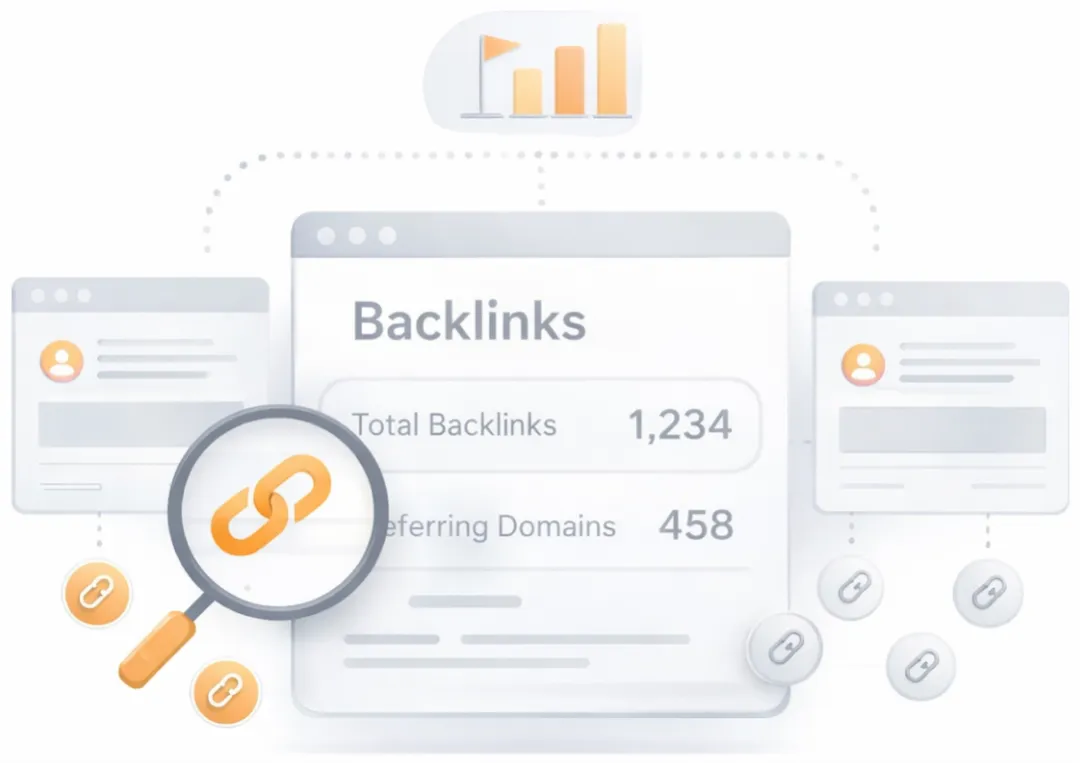
Identifies up to ten domains that compete for similar organic search results, ranked by overall domain authority based on the volume and quality of their backlink profiles. Useful for benchmarking the competitive landscape and prioritizing which sites to study for content and link-building strategy.
Robots.txt Test
Your site lacks a "robots.txt" file. This file can protect private content from appearing online, save bandwidth, and lower load on your server. A missing "robots.txt" file also generates additional errors in your apache log whenever robots request one. Read more about the robots.txt file, and how to create one for your site.

Robots.txt Test

How to pass this test?

In order to pass this test you must create and properly install a robots.txt file.

For this, you can use any program that produces a text file or you can use an online tool (Google Webmaster Tools has this feature).

Remember to use all lower case for the filename: robots.txt, not ROBOTS.TXT.

A simple robots.txt file looks like this:

User-agent: *
Disallow: /cgi-bin/
Disallow: /images/
Disallow: /pages/thankyou.html

This would block all search engine robots from visiting "cgi-bin" and "images" directories and the page "http://www.yoursite.com/pages/thankyou.html"

TIPS:

  • You need a separate Disallow line for every URL prefix you want to exclude
  • You may not have blank lines in a record because they are used to delimit multiple records
  • Notice that before the Disallow command, you have the command: User-agent: *. The User-agent: part specifies which robot you want to block. Major known crawlers are: Googlebot (Google), Googlebot-Image (Google Image Search), Baiduspider (Baidu), Bingbot (Bing)
  • One important thing to know if you are creating your own robots.txt file is that although the wildcard (*) is used in the User-agent line (meaning "any robot"), it is not allowed in the Disallow line.
  • Regular expressions are not supported in either the User-agent or Disallow lines

Once you have your robots.txt file, you can upload it in the top-level directory of your web server. After that, make sure you set the permissions on the file so that visitors (like search engines) can read it.

Check if your website is using a robots.txt file. When search engine robots crawl a website, they typically first access a site's robots.txt file. Robots.txt tells Googlebot and other crawlers what is and is not allowed to be crawled on your site.
Sitemap Test
Your site lacks a sitemap file. Sitemaps can help robots index your content more thoroughly and quickly. Read more on Google's guidelines for implementing the sitemap protocol.

Sitemap Test

How to pass this test?

In order to pass this test you must create a sitemap.xml file for your website. Some of the best practices are listed below:

  • It is strongly recommended that you place your sitemap at the root directory of your website: http://yourwebsite.com/sitemap.xml But in some situations, you may want to produce different sitemaps for different paths on your site (e.g., security permission issues)
  • Sitemaps should be no larger than 10MB (10,485,760 bytes) and can contain a maximum of 50,000 URLs. This means that if your site contains more than 50,000 URLs or your sitemap is bigger than 10MB, you must create multiple sitemap files and use a Sitemap index file
  • All URLs listed in the sitemap must reside on the same host as the sitemap. For instance, if the sitemap is located at http://www.yourwebsite.com/sitemap.xml, it can't include URLs from http://subdomain.yourwebsite.com
  • Once you have created your sitemap, let search engines know about it by submitting directly to them, pinging them, or adding the sitemap location to your robots.txt file
  • Sitemaps can be compressed using gzip, reducing bandwidth consumption

sitemap.xml example:

<?xml version="1.0" encoding="UTF-8"?>
<urlset xmlns="http://www.sitemaps.org/schemas/sitemap/0.9">
<url>
 <loc>http://www.yourwebsite.com</loc>
 <lastmod>2013-01-01</lastmod>
 <changefreq>weekly</changefreq>
 <priority>0.9</priority>
</url>
<url>
 <loc>http://www.yourwebsite.com/articles/100</loc>
 <changefreq>weekly</changefreq>
</url>
<url>
 <loc>http://www.yourwebsite.com/articles/101</loc>
 <lastmod>2013-01-02</lastmod>
 <changefreq>weekly</changefreq>
</url>
<url>
 <loc>http://www.yourwebsite.com/articles/102</loc>
 <lastmod>2013-01-02T13:00:12+00:00</lastmod>
 <priority>0.5</priority>
</url>
</urlset>
Check if the website has a sitemap. A sitemap is important as it lists all the web pages of the site and let search engine crawlers to crawl the website more intelligently. A sitemap also provides valuable metadata for each webpage.
Image Alt Test
Your webpage has 4 'img' tags and none of them has the required 'alt' attribute.

Image Alt Test

How to pass this test?

In order to pass this test you must add an alt attribute to every <img> tag used into your webpage.

An image with an alternate text specified is inserted using the following HTML line:

<img src="image.png" alt="text_to_describe_your_image">

Remember that the point of alt text is to provide the same functional information that a visual user would see. Search engines, users who disabled images in their browsers and other agents who are unable to see the images on your webpage can read the alt attributes assigned to the image since they cannot view it.

Learn more about optimizing images for SEO.

Check if images on your webpage are using alt attributes. If an image cannot be displayed (e.g., due to broken image source, slow internet connection, etc), the alt attribute provides alternative information. Using relevant keywords and text in the alt attribute can help both users and search engines better interpret the subject of an image.
Deprecated HTML Tags Test
Congratulations! Your page does not use HTML deprecated tags.
Check if your webpage is using old, deprecated HTML tags. These tags will eventually lose browser support and your web pages may render incorrectly as browsers drop support for these tags.
Google Analytics Test
Your website does not include Google Analytics tracker script or this script is not properly installed. You are advised to use Google Analytics (and properly install the tracker script) in order to get detailed statistics about your website's traffic and traffic sources.

Google Analytics Test

How to pass this test?

In order to pass this test you must create an account on Google Analytics site and insert into your page a small javascript tracking code.

Example:

<!-- Google Analytics -->
<script>
(function(i,s,o,g,r,a,m){i['GoogleAnalyticsObject']=r;i[r]=i[r]||function(){
(i[r].q=i[r].q||[]).push(arguments)},i[r].l=1*new Date();a=s.createElement(o),
m=s.getElementsByTagName(o)[0];a.async=1;a.src=g;m.parentNode.insertBefore(a,m)
})(window,document,'script','//www.google-analytics.com/analytics.js','ga');

ga('create', 'UA-XXXX-Y', 'auto');
ga('send', 'pageview');

</script>
<!-- End Google Analytics -->

Note that you have to change the 'UA-XXXX-Y' with the proper id which you'll find in your analytics account.

Check if your website is connected with Google Analytics. Google Analytics is a popular, free website analysis tool that helps provide insights about your site's traffic and demographics.
Favicon Test
We've found a favicon in your page's HTML code but it's not accessible.

Favicon Test

How to pass this test?

To add a favicon to your site, you need to have your logo created in a 16x16 PNG, GIF or ICO image and uploaded to your web server. Then it's simply a matter of adding the following code into the header of your HTML code for your web pages:

<head>
  <link rel="icon" type="image/x-icon" href="url_to_my_favicon" />
  <title>My Title</title>
</head>

In the example above the "url_to_my_favicon" refers to the actual location of your favicon file.

Check if your site is using and correctly implementing a favicon. Favicons are small icons that appear in your browser's URL navigation bar. They are also saved next to your URL's title when your page is bookmarked. This helps brand your site and make it easy for users to navigate to your site among a list of bookmarks.
JS Error Test
Congratulation! There is no occurrence of any severe JavaScript Errors in your web page.
Check your page for JavaScript errors. These errors may prevent users from properly viewing your pages and impact their user experience. Sites with poor user experience tend to rank worse in search engine results.

Speed optimizations

Score:26
Failed:3
Warnings:0
Passed:2
HTML Page Size Test
Congratulations! Your HTML size is 1.90 Kb and this is under the average web page size of 33 Kb.
This leads to a faster page loading time than average.
Check your page's HTML size. HTML size is the size of all the HTML code on your web page - this size does not include images, external javascripts or external CSS files.
HTML Compression/GZIP Test
Your page do not use any HTML compression!
You should compress your HTML to reduce your page size and page loading times - this will help your site retain visitors and increase page views. If you were using compression, you could be compressing your HTML size by 56 % - from 1.90 Kb to 0.84 Kb which would further reduce your page loading time.

HTML Compression/GZIP Test

How to pass this test?

Your two options for file compression are Deflate and GZIP.

  • Deflate is an option which comes automatically with the Apache server and which is simple to set up.
  • GZIP on the other hand needs to be installed and requires a bit more work to install. However, GZIP does achieve a higher compression rate and therefore might be a better choice if your website uses pages which have a lot of images or large file sizes.

Setting up file compression for your website will depend on which type of server you're using for your website. Most likely, you'll be using Apache, which means you can enable compression by adding a few deflate codes to your .htaccess file.

# compress text, html, javascript, css, xml:
AddOutputFilterByType DEFLATE text/plain
AddOutputFilterByType DEFLATE text/html
AddOutputFilterByType DEFLATE text/xml
AddOutputFilterByType DEFLATE text/css
AddOutputFilterByType DEFLATE application/xml
AddOutputFilterByType DEFLATE application/xhtml+xml
AddOutputFilterByType DEFLATE application/rss+xml
AddOutputFilterByType DEFLATE application/javascript
AddOutputFilterByType DEFLATE application/x-javascript

For more advanced information regarding deflate you can check this Apache documentation.

Check if your website is using HTML compression. HTML compression plays an important role in improving website speed by finding similar strings within a text file and replacing them temporarily to reduce overall file size.
Site Loading Speed Test
Your site loading time is around 5.143 seconds and is over the average loading speed which is 5 seconds.
Related Keywords

Accurate historical loading speed monitor and reports

Get detailed and accurate loading speed reports for your websites and see how your pages are being loaded over time.

Check your website's loading speed. Page speed is an important factors in search engine rankings and overall site success. Pages that take longer than 5 seconds to load can lose up to 50% of users. Faster webpages result in higher traffic, better conversions and increased sales over slower loading pages.
Page Objects Test
Congratulations, your page has fewer than 20 http requests. A higher number of http requests results in a user's browser needing to request a large number of objects from your server, which will ultimately slow down the loading of your web page.
Total Objects: 10
  • 3 HTML Pages
  • 3 CSS Files
  • 0 JS Files
  • 4 Images
  • 0 Flash Files
Check if all the objects requested by this webpage can be retrieved. If they are not retrievable, your page may display incorrectly, leading to a bad user experience and lower search engine rankings.
Image Caching Test
Your site is not using expires headers for your images. An expires tag can help speed up the serving of your webpages for users that regularly visit your site and see the same images. Learn more about how to add expires headers to your images.

Image Caching Test

How to pass this test?

In order to reduce the number of HTTP requests, you can use the HTTP Expires header to set an expiration time for your images or any other content type. You can add the following lines into your .htaccess file:
<IfModule mod_expires.c>
    ExpiresActive on
 
    ExpiresByType image/jpg "access plus 1 month"
    ExpiresByType image/jpeg "access plus 1 month"
    ExpiresByType image/gif "access plus 1 month"
    ExpiresByType image/png "access plus 1 month"
</IfModule>
Checks if your page is using an image expires tag, which specifies a future expiration date for your images. Users browsers will see this tag and cache the image in their browser until the specified date (so that it does not keep re-fetching the unchanged image from your server). This speeds up your site the next time returning visitors arrive at your site and require the same image.

Server and security

Score:NaN
Failed:2
Warnings:0
Passed:1
URL Canonicalization Test
http://solinks.tk and http://www.solinks.tk should resolve to the same URL, but currently do not.

URL Canonicalization Test

How to pass this test?

In order to pass this test you must consider using a 301 re-write rule in your .htaccess file so that both addresses (http://example.com and http://www.example.com) resolve to the same URL.

- If you want to redirect http://www.example.com to http://example.com, you can use this:

RewriteCond %{HTTP_HOST} ^www\.example\.com$
RewriteRule ^/?$ "http\:\/\/example\.com\/" [R=301,L]

- If you want to redirect http://example.com to http://www.example.com, you can use this:

RewriteCond %{HTTP_HOST} !^www.example.com$ [NC]
RewriteRule ^(.*)$ http://www.example.com/$1 [L,R=301]

Note that you must put the above lines somewhere after RewriteEngine On line.

Test your site for potential URL canonicalization issues. Canonicalization describes how a site can use slightly different URLs for the same page (e.g., if http://www.example.com and http://example.com displays the same page but do not resolve to the same URL). If this happens, search engines may be unsure about which URL is the correct one to index. Learn more about canonicalization issues.
HTTPS Test
Check if your website is using HTTPS, a secure protocol for sending/receiving data over the Internet. Using HTTPS indicates that an additional encryption/authentication layer was added between client and server. HTTPS should be used by any site that collects sensitive customer data such as credit card information. Even for sites that do not collect such data, switching to https helps users by improving privacy and overall security. Google is increasingly using https as a positive ranking factor.
Plaintext Emails Test
Congratulations! Your webpage does not include email addresses in plaintext.
Check your webpage for plaintext email addresses. Any e-mail address posted in public is likely to be automatically collected by computer software used by bulk emailers (a process known as e-mail address harvesting). A spam harvester can read through the pages in your site and extract plaintext email addresses which are then added to bulk marketing databases (resulting in more inbox spam). There are several methods for email obfuscation.

Mobile usability

Score:0
Failed:1
Warnings:0
Passed:1
Media Query Responsive Test
Your website is not using media queries. You should consider using this technique in order to implement responsive design functionalities.

Media Query Responsive Test

How to pass this test?

Media queries allow you to style elements for specific devices (smartphones, tablets, desktop computers) by using attributes like width, height, resolution, aspect ratio, orientation or color. By using media queries, presentations can be tailored to a specific range of output devices without changing the content itself.

Example:

<link rel="stylesheet" media="screen and (min-width: 480px) and (max-width: 960px)" 
href="480-960.css" />
 
<!-- OR -->
@media screen and (min-width: 480px) and (max-width: 960px) {
    #header {
        display: none;
    }
}

A @media rule specifies the target media types of a set of statements. In the example above, we are specifying the media type screen. The max-width and min-width features are telling the browser that at any screen size larger than 480px, but smaller than 960px, hide any elements with id="header".

Check if your page implements responsive design functionalities using the media query technique. The '@media' rule allows different style rules for screen sizes. Media query techniques allow different presentation and content to be served depending on the output device, helping ensure that your website renders optimally on all devices and platforms.
Mobile Snapshot Test
Mobile view
Check how your website renders on a mobile device.

Advanced SEO

Score:75
Failed:1
Warnings:0
Passed:4
Structured Data Test
Your webpage doesn't take the advantages of HTML Microdata specifications in order to markup structured data. View Google's guide for getting started with microdata.

Structured Data Test

How to pass this test?

HTML5 Microdata is an easy way to add semantic markup to your web pages. Search engines rely on this markup to improve the display of search results, making it easier for people to find the right web pages.

Here is a simple example of how to use HTML5 microdata in your contact web page:

<div itemscope itemtype="http://schema.org/Person">
   <span itemprop="name">Joe Doe</span>
   <span itemprop="company">The Example Company</span>
   <span itemprop="tel">604-555-1234</span>
   <a itemprop="email" href="mailto:joe.doe@example.com">joe.doe@example.com</a>
</div>
Check if your website uses HTML Microdata specifications (or structured data markup). Search engines use microdata to better understand the content of your site and create rich snippets in search results (which helps increase click-through rate to your site).
Noindex Tag Test
Your webpage does not use the noindex meta tag. This means that your webpage will be read and indexed by search engines.
Check if your webpage is using the robots meta tag or the X-Robots-Tag HTTP header to instruct search engines not to show your site in search results pages.
Canonical Tag Test
Your page does not use the canonical link tag.
Check if your webpage is using the canonical link tag. The canonical link tag is used to nominate a primary page when you have several pages with duplicate or very similar content.
Nofollow Tag Test
Your webpage does not use the nofollow meta tag. This means that search engins will crawl all links from your webpage.
Check if your webpage is using the robots meta tag or the X-Robots-Tag HTTP header to instruct search engines not to follow the links on your page. Outgoing links marked with this tag will tell search engines not to follow or crawl that particular link. Google recommends that nofollow tags are used for paid advertisements on your site and links to pages that have not been vetted as trusted sites (e.g., links posted by users of your site).
Disallow Directive Test
Your site lacks a "robots.txt" file. This file can protect private content from appearing online, save bandwidth, and lower load on your server. A missing "robots.txt" file also generates additional errors in your apache log whenever robots request one.
Check if your robots.txt file is instructing search engine crawlers to avoid parts of your website. The disallow directive is used in robots.txt to tell search engines not to crawl and index a file, page, or directory.

Dominate search today on Google and AI Engines.

Join 85,000+ SaaS Marketers, Growth Agencies, Content-Led Companies and E-commerce Brands.

See Pricing
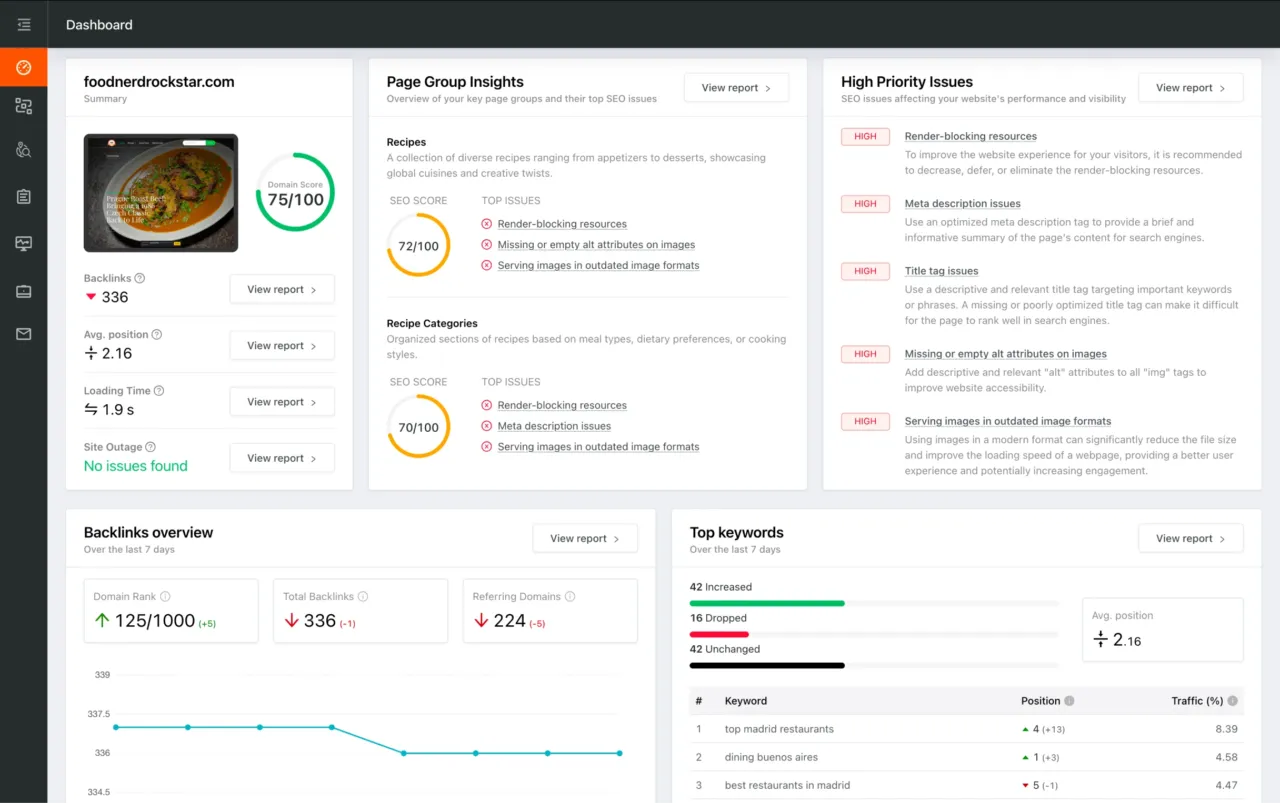
Dashboard preview showing SEO site checkup metrics, page group insights, and issue prioritization