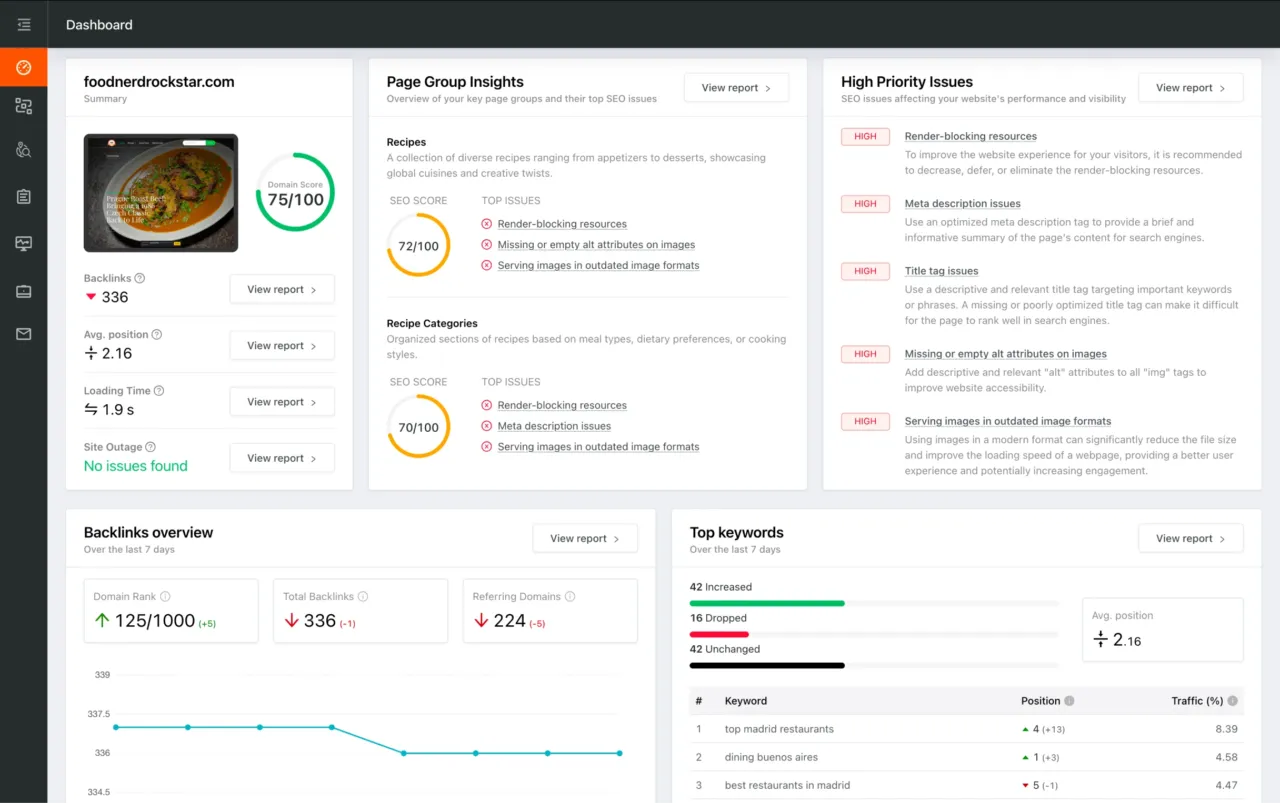
You're viewing a free snapshot. Unlock full monitoring, AI visibility tracking, and weekly reports.
SEO Score59/100
Average SEO score of top 100 sites: 75%This value indicates the average SEO score of the top 100 most visited websites in the US (in the past 12 months)
Your site scored 59/100, well below the 75 average for top sites. We found 14 issues to fix, and clearing them is how you move up.
14 Failed
5 Warnings
25 Passed
Want to fix these issues and track your progress?
Issues to fix
HIGH
To improve the website experience for your visitors, it is recommended to eliminate any render-blocking resources on this webpage.
DetailsHIGH
To ensure that Search Engines can accurately identify the topic of this webpage, it is important to include the most common keywords in the title tag, meta description, and heading tags.
DetailsHIGH
Using images in a modern format can significantly reduce the file size and improve the loading speed of a webpage, providing a better user experience and potentially increasing engagement.
DetailsMEDIUM
Minify all JavaScript files to reduce page size and loading time.
DetailsMEDIUM
Serve properly sized images to reduce page loading times and to improve user's experience.
DetailsMEDIUM
Avoid using distorted images, as they can have a negative impact on the user experience.
DetailsMEDIUM
Reducing the JavaScript execution time can result in faster page load times and a smoother user experience, as it allows the browser to render and display the page more quickly.
DetailsMEDIUM
HTTP/2 protocol offers several key improvements, including faster page load times, improved performance, better security and more efficient use of network resources.
DetailsMEDIUM
Avoid performance and security issues by adding "rel=noopener" or "rel=noreferrer" to your "target=_blank" links.
DetailsLOW
Consider reducing the HTML size to improve loading times and retain visitors.
DetailsLOW
Reducing the Document Object Model (DOM) size can lead to faster page loading times, improved site performance, and better user experience by decreasing the amount of time it takes for the browser to process and render the page.
DetailsLOW
Using more than 20 HTTP requests on a webpage can negatively impact the loading time.
DetailsLOW
Consider adding the Strict-Transport-Security header to your webpage to ensure that web traffic is encrypted over HTTPS, mitigating the risk of man-in-the-middle attacks and other security threats.
DetailsCommon SEO issues
Score:61
Failed:3
Warnings:2
Passed:8
Meta Title Test
100% of top 100 sites passed
This value indicates the percent of top 100 most visited websites in the US that pass this test (in the past 12 months). Failing a test that a high percentage of top websites are passing may indicate an industry best practice that you should be fixing.
This webpage is using a title tag.
The meta title is an HTML element that defines a page's title, displayed in search engine results, browser tabs, and bookmark lists. A concise, keyword-relevant title is a strong on-page ranking signal and a major driver of organic click-through rate. AI answer engines and LLM-driven search experiences also rely on the title to identify, summarize, and cite the page in generative results.
Meta Description Test
92% of top 100 sites passed
This value indicates the percent of top 100 most visited websites in the US that pass this test (in the past 12 months). Failing a test that a high percentage of top websites are passing may indicate an industry best practice that you should be fixing.
This webpage is using a meta description tag with a length of 101 characters. We recommend using well-written and inviting meta descriptions with a length between 150 and 220 characters (spaces included).
The meta description is an HTML tag that provides a short summary of a page's content, often shown beneath the title in search results. While not a direct ranking factor, an accurate and inviting description significantly improves click-through rate from organic listings. AI answer engines and social platforms also use it as a trusted summary when generating previews, citations and shareable snippets.
Desktop version
https://index.hu/
Mobile version
https://index.hu/
A simulated preview of how the page may appear in Google search results, combining the title, URL, and meta description as Google typically renders them. Useful for spotting truncated text, weak phrasing, or missing elements before publishing, since the snippet directly influences whether searchers click through.
There is likely no optimal keyword density (search engine algorithms have evolved beyond keyword density metrics as a significant ranking factor). It can be useful, however, to note which keywords appear most often on your page and if they reflect the intended topic of your page. More importantly, the keywords on your page should appear within natural sounding and grammatically correct copy.
A frequency analysis of the most repeated words and phrases in the page's visible content. Useful for getting a quick sense of which topics search engines are likely to associate with the page, and for spotting cases where the actual content drifts from the intended subject.
Keywords Usage Test
48% of top 100 sites passed
This value indicates the percent of top 100 most visited websites in the US that pass this test (in the past 12 months). Failing a test that a high percentage of top websites are passing may indicate an industry best practice that you should be fixing.
The most common keywords of this webpage are not distributed across the important HTML tags! Primary keywords should appear in title tag, meta description and heading tags to help Search Engines to properly identify the topic of this webpage.
Cross-checks whether the most frequently used keywords on the page also appear in the title and meta description. Alignment between body content and metadata helps search engines confirm the page's topic and reinforces relevance for those terms.
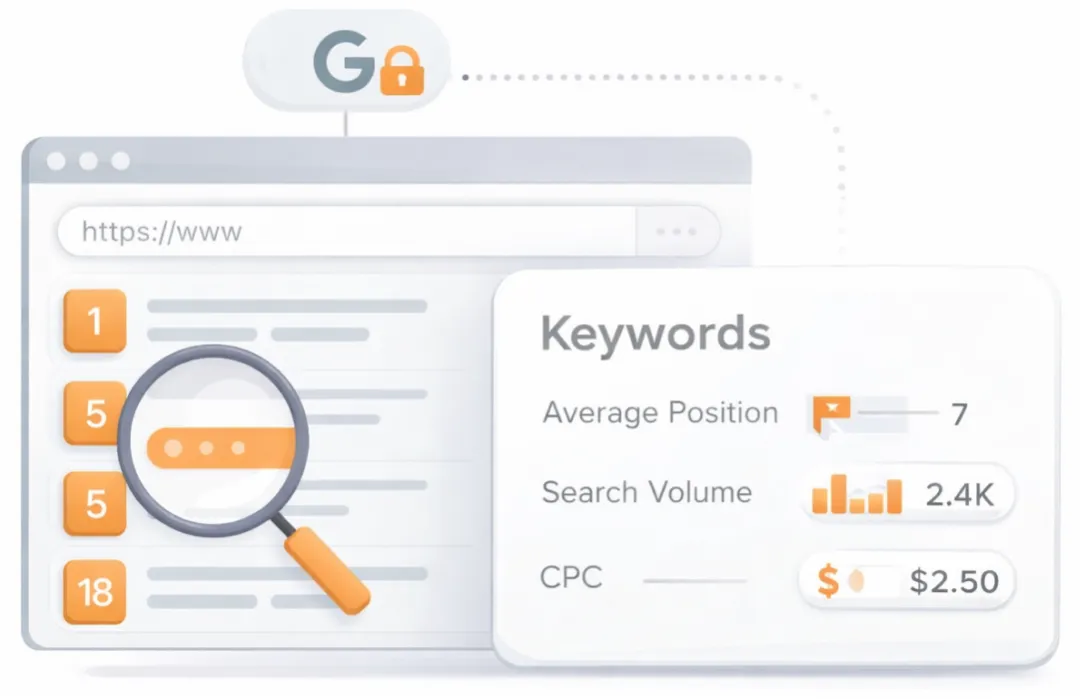
See which keywords rank your URL in Google’s top 20
Get key keyword metrics like average position, search volume, CPC, and more.

A list of search queries for which the page already appears in the top organic results. Highlights the topical territory the page is winning in search and can surface unexpected terms that present new content or optimization opportunities.

Understand your competitors' SEO and backlink profile
Get related competitors and their domain authority score in relation to your domain.
Identifies up to ten domains that compete for similar organic search results, ranked by overall domain authority based on the volume and quality of their backlink profiles. Useful for benchmarking the competitive landscape and prioritizing which sites to study for content and link-building strategy.
Robots.txt Test
99% of top 100 sites passed
This value indicates the percent of top 100 most visited websites in the US that pass this test (in the past 12 months). Failing a test that a high percentage of top websites are passing may indicate an industry best practice that you should be fixing.
This website is using a robots.txt file.
Verifies whether the site exposes a robots.txt file at the root domain. This file is the first resource most crawlers request, telling search engines and other bots which paths they may or may not access. It is also the standard mechanism for allowing or blocking modern AI crawlers used by training pipelines and answer engines.
Sitemap Test
83% of top 100 sites passed
This value indicates the percent of top 100 most visited websites in the US that pass this test (in the past 12 months). Failing a test that a high percentage of top websites are passing may indicate an industry best practice that you should be fixing.
This website has a sitemap file.
Looks for an XML sitemap on the site and reports whether one is published. Sitemaps give search engines an explicit, machine-readable list of the URLs you want crawled, along with metadata such as last-modified dates, which speeds up discovery of new and updated pages. They are especially useful for large sites or those with weak internal linking.
Image Alt Test
78% of top 100 sites passed
This value indicates the percent of top 100 most visited websites in the US that pass this test (in the past 12 months). Failing a test that a high percentage of top websites are passing may indicate an industry best practice that you should be fixing.
This webpage is using "img" tags with empty or missing "alt" attribute!
Inspects whether images on the page include descriptive alt attributes. Alt text provides accessibility for screen readers, a fallback when images fail to load, and a textual signal that helps search engines understand image content. It also improves how AI crawlers and image search tools interpret and surface the visuals.
Responsive Image Test
29% of top 100 sites passed
This value indicates the percent of top 100 most visited websites in the US that pass this test (in the past 12 months). Failing a test that a high percentage of top websites are passing may indicate an industry best practice that you should be fixing.
Not all images in this webpage are properly sized! This webpage is serving images that are larger than needed for the size of the user's viewport.
Compares the natural dimensions of each image to the size at which it is actually rendered in the user's viewport. Serving images significantly larger than needed wastes bandwidth, slows page load, and forces the browser to scale assets unnecessarily, all of which hurt performance and user experience.
Image Aspect Ratio Test
75% of top 100 sites passed
This value indicates the percent of top 100 most visited websites in the US that pass this test (in the past 12 months). Failing a test that a high percentage of top websites are passing may indicate an industry best practice that you should be fixing.
Not all image display dimensions match the natural aspect ratio! Fix aspect ratio issues to avoid distorted images on this website!
Compares each image's natural aspect ratio against the ratio at which it is displayed on the page. Significant mismatches result in stretched or squashed visuals that look unprofessional and degrade the user experience.
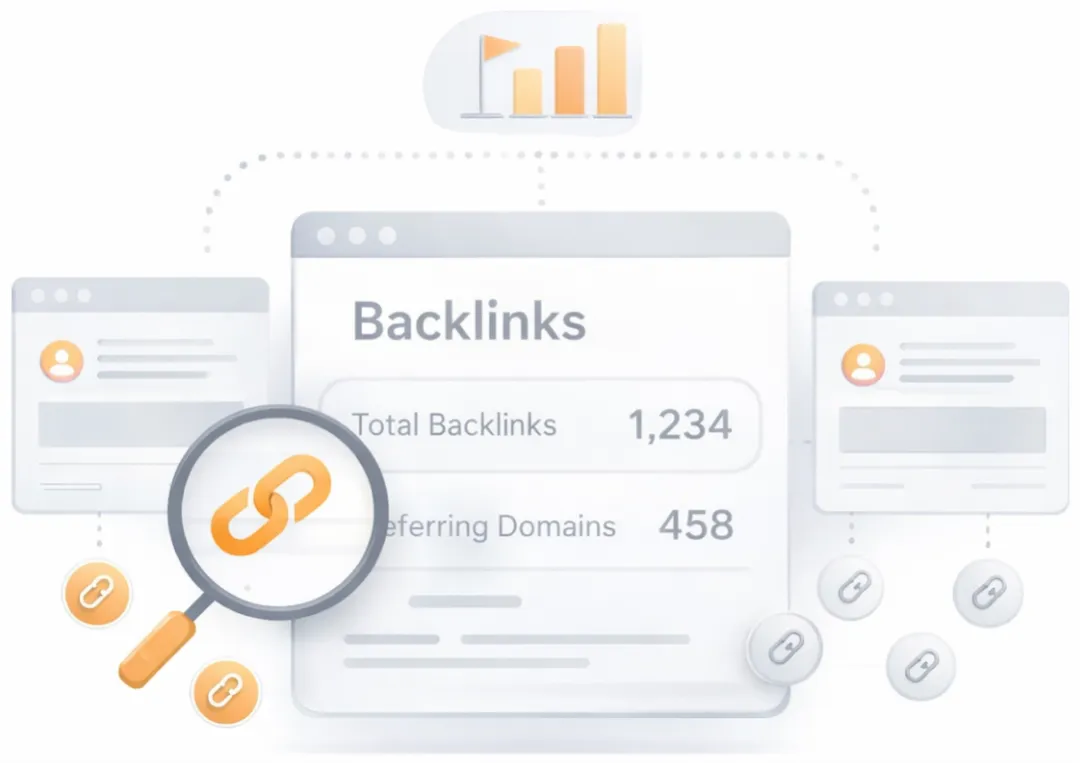
Get a full and detailed list of your backlinks
See every website linking to yours, along with detailed backlink data.
Surfaces the external pages that link to the analyzed URL. Backlinks from authoritative, topically relevant sites remain one of the strongest off-page ranking signals, while a profile dominated by low-quality or spammy links can attract algorithmic penalties. Reviewing the inbound link mix helps identify both link-building wins and toxic links worth disavowing.
JS Error Test
83% of top 100 sites passed
This value indicates the percent of top 100 most visited websites in the US that pass this test (in the past 12 months). Failing a test that a high percentage of top websites are passing may indicate an industry best practice that you should be fixing.
There are no severe JavaScript errors on this webpage.
Inspects the page for JavaScript runtime errors that occur as it loads. Unhandled errors can break interactive features, leave content unrendered, and signal poor code quality, all of which hurt the user experience that search engines factor into rankings.
Charset Declaration Test
96% of top 100 sites passed
This value indicates the percent of top 100 most visited websites in the US that pass this test (in the past 12 months). Failing a test that a high percentage of top websites are passing may indicate an industry best practice that you should be fixing.
This webpage has a character encoding declaration.
Content-Type: text/html; charset=UTF-8
Checks whether the page declares a character encoding such as UTF-8. Without an explicit charset declaration, browsers must guess the encoding, which can lead to garbled symbols, broken accented characters, and inconsistent rendering across devices. UTF-8 is the modern standard recommended by Google.
Speed optimizations
Score:41
Failed:7
Warnings:3
Passed:4
HTML Page Size Test
23% of top 100 sites passed
This value indicates the percent of top 100 most visited websites in the US that pass this test (in the past 12 months). Failing a test that a high percentage of top websites are passing may indicate an industry best practice that you should be fixing.
The size of this webpage's HTML is 90.09 Kb, and is greater than the average size of 33 Kb! This can lead to slower loading times, lost visitors, and decreased revenue. Good steps to reduce HTML size include: using HTML compression, CSS layouts, external style sheets, and moving javascript to external files.
Measures the size of the raw HTML document, excluding images and external CSS or JavaScript. Bloated HTML increases time to first byte and parsing time, slowing down rendering on mobile networks and lower-powered devices. Trimming inline styles, redundant markup, and oversized inline data keeps initial load fast.
DOM Size Test
56% of top 100 sites passed
This value indicates the percent of top 100 most visited websites in the US that pass this test (in the past 12 months). Failing a test that a high percentage of top websites are passing may indicate an industry best practice that you should be fixing.
The Document Object Model (DOM) of this webpage has 4,368 nodes which is greater than the recommended value of 1,500 nodes! A large DOM size negatively affects site performance and increases the page load time.
Measures the size and depth of the page's Document Object Model, the tree of nodes the browser builds from the HTML. Very large DOMs increase memory usage, lengthen style and layout calculations, and slow down rendering, particularly on mobile devices. Keeping the DOM lean improves both load time and runtime responsiveness.
JS Execution Time Test
53% of top 100 sites passed
This value indicates the percent of top 100 most visited websites in the US that pass this test (in the past 12 months). Failing a test that a high percentage of top websites are passing may indicate an industry best practice that you should be fixing.
The JavaScript code used by this webpage is executed in more than 3.5 seconds! When the JavaScript code takes a long time to execute, it slows down the page performance in several ways: longer download times, main thread bottlenecks, delays of "Time To Interactive", memory leaks, etc.
Reports the total time the browser spends parsing, compiling, and executing JavaScript while the page loads. Heavy JavaScript work blocks the main thread and is the primary cause of poor Interaction to Next Paint, the Core Web Vital that replaced First Input Delay in 2024 and that Google uses as part of its ranking algorithms. Reducing bundle size and deferring non-critical scripts directly improves perceived performance.
Page Objects Test
7% of top 100 sites passed
This value indicates the percent of top 100 most visited websites in the US that pass this test (in the past 12 months). Failing a test that a high percentage of top websites are passing may indicate an industry best practice that you should be fixing.
This webpage is using more than 20 http requests, which can slow down page loading and negatively impact user experience!
Content size by content type
Content type
Percent
Size
image
49.9 %
9.33 Mb
javascript
18.3 %
3.41 Mb
other
17.1 %
3.20 Mb
font
6.9 %
1.29 Mb
css
5.2 %
998.30 Kb
html
2.6 %
488.19 Kb
TOTAL
100%
18.68 Mb
Requests by content type
Content type
Percent
Requests
javascript
48.2 %
165
image
18.4 %
63
other
13.5 %
46
html
9.6 %
33
font
5.6 %
19
css
4.7 %
16
TOTAL
100%
342
Content size by domain
Domain
Percent
Size
kep.cdn.indexvas.hu
42.3 %
7.90 Mb
cms.indaplay.hu
15.0 %
2.79 Mb
index.hu
10.1 %
1.89 Mb
indaplay.hu
7.0 %
1.32 Mb
galeria.cdn.index.hu
6.5 %
1.21 Mb
googletagmanager.com
3.4 %
644.64 Kb
imasdk.googleapis.com
2.3 %
438.39 Kb
cmp.inmobi.com
1.9 %
356.32 Kb
indexhu.adocean.pl
1.7 %
329.43 Kb
securepubads.g.doubleclick.net
1.5 %
295.69 Kb
Other
8.3 %
1.56 Mb
TOTAL
100%
18.68 Mb
Requests by domain
Domain
Percent
Requests
indaplay.hu
15.2 %
52
index.hu
12.3 %
42
kep.cdn.indexvas.hu
10.5 %
36
indexadhu.hit.gemius.pl
8.5 %
29
indexhu.adocean.pl
6.1 %
21
cms.indaplay.hu
3.5 %
12
viewability.inda.hu
3.2 %
11
gahu.hit.gemius.pl
2.9 %
10
cmp.inmobi.com
2.3 %
8
iap.cdn.indexvas.hu
2.3 %
8
Other
33.0 %
113
TOTAL
100%
342
Verifies that every resource the page requests, including images, scripts, stylesheets, and fonts, can be successfully retrieved. Broken or unreachable assets can leave the page rendered incorrectly, trigger console errors, and damage both user experience and how search engines perceive page quality.
CDN Usage Test
95% of top 100 sites passed
This value indicates the percent of top 100 most visited websites in the US that pass this test (in the past 12 months). Failing a test that a high percentage of top websites are passing may indicate an industry best practice that you should be fixing.
This webpage is not serving all resources (images, javascript and css) from CDNs!
Detects whether static assets such as images, JavaScript, and CSS are delivered through a Content Delivery Network. CDNs serve files from edge locations close to the user, reducing latency, improving cache hit rates, and offloading traffic from the origin server. The result is faster, more consistent page performance worldwide.
Modern Image Format Test
43% of top 100 sites passed
This value indicates the percent of top 100 most visited websites in the US that pass this test (in the past 12 months). Failing a test that a high percentage of top websites are passing may indicate an industry best practice that you should be fixing.
Identifies images served in legacy formats such as JPEG and PNG instead of modern alternatives like WebP or AVIF. Modern formats compress significantly better at equivalent visual quality, which means smaller transfers, faster page loads, and lower data usage for visitors on metered connections.
Image Caching Test
95% of top 100 sites passed
This value indicates the percent of top 100 most visited websites in the US that pass this test (in the past 12 months). Failing a test that a high percentage of top websites are passing may indicate an industry best practice that you should be fixing.
This website is using cache headers for images and the browsers will display these images from the cache.
Inspects whether image responses include caching headers that allow browsers to store them for repeat visits. With proper caching directives, returning visitors retrieve images from the local cache instead of refetching them, producing noticeably faster subsequent page loads.
CSS Caching Test
98% of top 100 sites passed
This value indicates the percent of top 100 most visited websites in the US that pass this test (in the past 12 months). Failing a test that a high percentage of top websites are passing may indicate an industry best practice that you should be fixing.
This webpage is using cache headers for all CSS resources.
Inspects whether external CSS files are served with caching headers that allow browsers to store and reuse them. Cached stylesheets skip the network on repeat visits, reducing load time for returning users while still allowing updates through versioned filenames.
JavaScript Minification Test
98% of top 100 sites passed
This value indicates the percent of top 100 most visited websites in the US that pass this test (in the past 12 months). Failing a test that a high percentage of top websites are passing may indicate an industry best practice that you should be fixing.
This webpage is using JavaScript files that are not minified!
Detects whether external JavaScript files are minified by stripping whitespace, comments, and shortening identifiers. Minified scripts are substantially smaller and faster to download and parse, which lowers page load time and improves Core Web Vitals scores.
CSS Minification Test
100% of top 100 sites passed
This value indicates the percent of top 100 most visited websites in the US that pass this test (in the past 12 months). Failing a test that a high percentage of top websites are passing may indicate an industry best practice that you should be fixing.
All CSS resources used by this webpage are minified.
Detects whether external CSS files are minified by removing whitespace, comments, and unused characters. Minification reduces stylesheet size with no functional change, leading to faster downloads and quicker first render.
Render Blocking Resources Test
15% of top 100 sites passed
This value indicates the percent of top 100 most visited websites in the US that pass this test (in the past 12 months). Failing a test that a high percentage of top websites are passing may indicate an industry best practice that you should be fixing.
This webpage is using render blocking resources! Eliminating render-blocking resources can help this webpage to load significantly faster and will improve the website experience for your visitors.
Identifies JavaScript and CSS resources that the browser must download and process before it can render visible content. Each render-blocking file delays the first paint, and on slower networks the cumulative impact can be severe. Inlining critical styles, deferring non-essential scripts, and removing unused code all help unblock the rendering path.
Time To First Byte Test
99% of top 100 sites passed
This value indicates the percent of top 100 most visited websites in the US that pass this test (in the past 12 months). Failing a test that a high percentage of top websites are passing may indicate an industry best practice that you should be fixing.
The Time To First Byte value of this webpage is 0.136 seconds. To provide a good user experience, Google recommends that sites should strive to have a TTFB of 0.8 seconds or less.
0.136 s
0.8 s
1.8 s
Measures Time to First Byte, the delay between the browser requesting the page and the first byte of the response arriving. TTFB reflects backend, network, and CDN performance and effectively sets the floor for every other loading metric, since rendering cannot begin until bytes start flowing. Sustained high TTFB usually points to slow server processing, missing edge caching, or inefficient redirects.
Largest Contentful Paint Test
77% of top 100 sites passed
This value indicates the percent of top 100 most visited websites in the US that pass this test (in the past 12 months). Failing a test that a high percentage of top websites are passing may indicate an industry best practice that you should be fixing.
The Largest Contentful Paint duration of this webpage is 3.58 seconds. To provide a good user experience, Google recommends that sites should strive to have Largest Contentful Paint of 2.5 seconds or less.
3.58 s
2.5 s
4 s
Largest Contentful Paint element within the viewport:
<img class="cikkep" alt="Orbán Viktor „ÁVH”-zása után megszólalt Unger Anna..." loading="lazy" src="//kep.cdn.indexvas.hu/1/0/7127/71275/712756/712756...">
Measures Largest Contentful Paint, the time at which the largest visible element in the viewport, such as a hero image or main heading, finishes rendering. LCP is one of Google's Core Web Vitals and a direct ranking factor, used as a proxy for when the user perceives the page as effectively loaded.
Cumulative Layout Shift Test
91% of top 100 sites passed
This value indicates the percent of top 100 most visited websites in the US that pass this test (in the past 12 months). Failing a test that a high percentage of top websites are passing may indicate an industry best practice that you should be fixing.
The CLS score of this webpage is 0.2187. To provide a good user experience, Google recommends that sites should strive to have a CLS score of 0.1 or less.
0.2187
0.1
0.25
DOM element which contributes the most to CLS score:
Text: Orbán Viktor „ÁVH”-zása után megszólalt Unger Anna: Meg fogjuk tenni a szükséges...
Html: <section class="blokk hajtas-felett dupla-vezeto-blokk cimlap-blok..." data-ff-zoneid="Hajtás felett 1">
Score: 0.1872
Measures Cumulative Layout Shift, the total amount that visible elements move around unexpectedly while the page loads. Layout shifts cause users to misclick and feel the page is unstable, and CLS is one of Google's Core Web Vitals and a direct ranking factor. Common causes include images without explicit dimensions, late-loading fonts, and aggressively injected overlays such as cookie consent banners.
Server and security
Score:64
Failed:3
Warnings:0
Passed:2
SSL Checker and HTTPS Test
100% of top 100 sites passed
This value indicates the percent of top 100 most visited websites in the US that pass this test (in the past 12 months). Failing a test that a high percentage of top websites are passing may indicate an industry best practice that you should be fixing.
This website is successfully using HTTPS, a secure communication protocol over the Internet.
The certificate is not used before the activation date.
The certificate has not expired.
The hostname "index.hu" is correctly listed in the certificate.
The certificate should be trusted by all major web browsers.
The certificate was not revoked.
The certificate was signed with a secure hash.
Certificate Chain:
Server certificate
Common Name
index.hu
Subject Alternative Names
index.hu, www.index.hu
Not Valid Before
Mon, November 24, 2025 at 12:00:00 AM UTC
Not Valid After
Fri, December 25, 2026 at 11:59:59 PM UTC
Signature Algorithm
sha256WithRsaEncryption
Issuer
Sectigo Public Server Authentication CA DV R36
Intermediate certificate
Common Name
Sectigo Public Server Authentication CA DV R36
Organization
Sectigo Limited
Location
GB
Not Valid Before
Mon, March 22, 2021 at 12:00:00 AM UTC
Not Valid After
Fri, March 21, 2036 at 11:59:59 PM UTC
Signature Algorithm
sha384WithRsaEncryption
Issuer
Sectigo Public Server Authentication Root R46
Root certificate
Common Name
Sectigo Public Server Authentication Root R46
Organization
Sectigo Limited
Location
GB
Not Valid Before
Mon, March 22, 2021 at 12:00:00 AM UTC
Not Valid After
Wed, March 21, 2046 at 11:59:59 PM UTC
Signature Algorithm
sha384WithRsaEncryption
Issuer
Sectigo Public Server Authentication Root R46
Verifies whether the site is served over HTTPS with a valid TLS certificate. HTTPS encrypts the connection between visitor and server, protecting credentials and other sensitive data in transit, and Google has used it as a positive ranking signal since 2014. Modern browsers also flag non-HTTPS pages as Not Secure, which damages user trust.
Mixed Content Test (HTTP over HTTPS)
100% of top 100 sites passed
This value indicates the percent of top 100 most visited websites in the US that pass this test (in the past 12 months). Failing a test that a high percentage of top websites are passing may indicate an industry best practice that you should be fixing.
This webpage does not use mixed content - both the initial HTML and all other resources are loaded over HTTPS.
Detects whether a page served over HTTPS is loading any sub-resources such as images, scripts, or stylesheets over insecure HTTP. Mixed content weakens the security guarantees of HTTPS, and modern browsers either block the resources outright or warn the user, often breaking the page in the process.
HTTP2 Test
99% of top 100 sites passed
This value indicates the percent of top 100 most visited websites in the US that pass this test (in the past 12 months). Failing a test that a high percentage of top websites are passing may indicate an industry best practice that you should be fixing.
This webpage is not using the HTTP/2 protocol!
Verifies whether the page and its resources are delivered over HTTP/2 or newer, rather than the legacy HTTP/1.1 protocol. HTTP/2 introduces multiplexing, header compression, and prioritization, which together reduce latency and allow the browser to load many resources from the same origin far more efficiently.
HSTS Test
84% of top 100 sites passed
This value indicates the percent of top 100 most visited websites in the US that pass this test (in the past 12 months). Failing a test that a high percentage of top websites are passing may indicate an industry best practice that you should be fixing.
This webpage is not using the Strict-Transport-Security header! This is a security header that was created as a way to force the browser to use secure connections when a site is running over HTTPS.
Checks whether the server sends a Strict-Transport-Security header instructing browsers to only access the site over HTTPS. HSTS protects users from protocol downgrade attacks and accidental exposure to insecure connections, and is a baseline requirement for any site handling sensitive data.
Unsafe Cross-Origin Links Test
45% of top 100 sites passed
This value indicates the percent of top 100 most visited websites in the US that pass this test (in the past 12 months). Failing a test that a high percentage of top websites are passing may indicate an industry best practice that you should be fixing.
This webpage is using target="_blank" links without rel="noopener" or rel="noreferrer" attribute, which can expose it to performance and security issues!
Inspects external links opened in a new tab to confirm they include the noopener or noreferrer relationship attributes. Modern browsers now apply noopener implicitly to such links, so this is largely a defense for older browsers and a way to keep the destination page from running in the same process as the original tab. Including the attributes explicitly remains a security and performance best practice.
Mobile usability
Score:100
Failed:0
Warnings:0
Passed:3
Meta Viewport Test
92% of top 100 sites passed
This value indicates the percent of top 100 most visited websites in the US that pass this test (in the past 12 months). Failing a test that a high percentage of top websites are passing may indicate an industry best practice that you should be fixing.
This webpage is using a viewport meta tag.
<meta name="viewport" content="width=device-width, initial-scale=1.0" />Checks whether the page declares a viewport meta tag that controls how the layout scales on mobile devices. Without it, mobile browsers render the page at a default desktop width and shrink it to fit, producing unreadable text and unusable touch targets. A correct viewport declaration is the foundation of responsive design.
Media Query Responsive Test
98% of top 100 sites passed
This value indicates the percent of top 100 most visited websites in the US that pass this test (in the past 12 months). Failing a test that a high percentage of top websites are passing may indicate an industry best practice that you should be fixing.
This webpage is using CSS media queries, which is the base for responsive design functionalities.
Detects whether the page's stylesheets use CSS media queries to adapt the layout to different screen sizes. Media queries are the primary mechanism for responsive design, allowing typography, spacing, and component arrangement to adjust gracefully from phones to large desktops. Because Google now indexes the web mobile-first, the responsive mobile layout is effectively the version search engines crawl, evaluate, and rank.
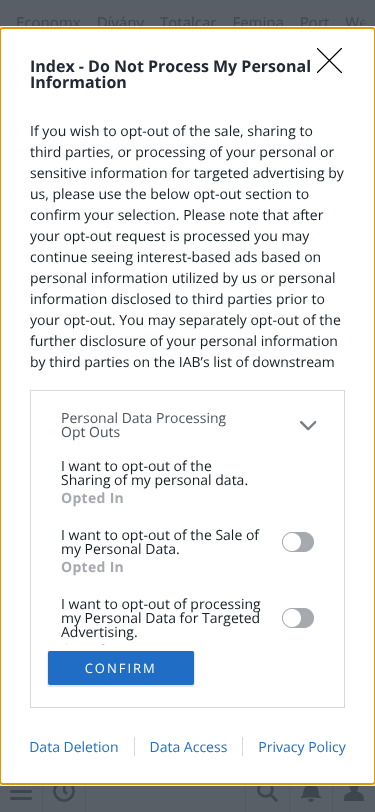
A rendered screenshot of how the page appears on a mobile device. Useful for visually confirming that responsive layouts work as intended and for spotting issues such as overflowing content, illegible text, or broken images that automated checks alone may miss.
Advanced SEO
Score:95
Failed:1
Warnings:0
Passed:8
Structured Data Test
66% of top 100 sites passed
This value indicates the percent of top 100 most visited websites in the US that pass this test (in the past 12 months). Failing a test that a high percentage of top websites are passing may indicate an industry best practice that you should be fixing.
This webpage is using structured data.
Inspects the page for structured data markup such as JSON-LD or Microdata that follows schema.org vocabularies. Structured data helps search engines understand entities and relationships on the page, often unlocking rich result features in SERPs such as star ratings, FAQs, recipes, and product cards. It is also a primary signal AI answer engines use to extract precise facts when generating responses.
Custom 404 Error Page Test
80% of top 100 sites passed
This value indicates the percent of top 100 most visited websites in the US that pass this test (in the past 12 months). Failing a test that a high percentage of top websites are passing may indicate an industry best practice that you should be fixing.
This website is using a custom 404 error page. We recommend to have a custom 404 error page in order to improve the website's user experience by letting users know that only a specific page is missing/broken (and not the entire site), providing them helpful links, the opportunity to report bugs, and potentially track the source of broken links.
Detects whether the site serves a branded, helpful page when a requested URL is not found, instead of the browser's generic error screen. A custom 404 keeps users on the site by offering navigation, search, or suggested links, which reduces frustration and protects engagement metrics that influence both UX perception and indirect SEO outcomes.
Meta Refresh Test
98% of top 100 sites passed
This value indicates the percent of top 100 most visited websites in the US that pass this test (in the past 12 months). Failing a test that a high percentage of top websites are passing may indicate an industry best practice that you should be fixing.
This webpage is not using a meta refresh tag.
Detects whether the page uses a meta refresh tag to automatically reload or redirect after a delay. Meta refresh is largely obsolete, hurts accessibility by jumping focus and disorienting screen reader users, and is a weaker signal to search engines than a proper server-side 301 redirect. Its presence usually indicates outdated implementation worth updating.
SPF Records Test
94% of top 100 sites passed
This value indicates the percent of top 100 most visited websites in the US that pass this test (in the past 12 months). Failing a test that a high percentage of top websites are passing may indicate an industry best practice that you should be fixing.
This DNS server is using an SPF record.
v=spf1 a mx include:_spf.inda.hu include:_spf.google.com ?all
Checks the domain's DNS for a Sender Policy Framework record. SPF lets receiving mail servers verify that messages claiming to come from the domain were actually sent by an authorized mail server, which significantly reduces the chance of legitimate email being marked as spam and protects the domain's sender reputation.
Ads.txt Validation Test
67% of top 100 sites passed
This value indicates the percent of top 100 most visited websites in the US that pass this test (in the past 12 months). Failing a test that a high percentage of top websites are passing may indicate an industry best practice that you should be fixing.
This website is using an Authorized Digital Sellers (ads.txt) file, but its content has invalid records! Having errors in this file would cause advertisers to not recognize and ignore the authorized sellers list and that will lead to lost revenue.
Validates the format of the site's ads.txt file, which publishers use to declare which advertising vendors are authorized to sell their inventory programmatically. A correctly formatted ads.txt protects against domain spoofing in the ad supply chain and is required for inclusion in many premium advertising marketplaces.