Archived

SEO Report for https://cphbooks.in

Your general SEO Checkup Score


SEO Score54/100
Average SEO score of top 100 sites: 75%This value indicates the average SEO score of the top 100 most visited websites in the US (in the past 12 months)
AI Visibility60/100
AI visibility score reflects brand reach in AI

Your site scored 54/100, well below the 75 average for top sites. We found 21 issues to fix, and clearing them is how you move up. And an AI Visibility Score of 60/100 means ChatGPT, Gemini and Perplexity mention your brand some of the time, with clear room to push further.

21 Failed
5 Warnings
37 Passed

Want to fix these issues and track your progress?

Issues to fix

HIGH
To provide a good user experience, Google recommends that sites should aim for a Largest Contentful Paint duration of 2.5 seconds or less.
Details
HIGH
To improve the website experience for your visitors, it is recommended to eliminate any render-blocking resources on this webpage.
Details
HIGH
Users may abandon pages that take longer than 5 seconds to load, resulting in a potential loss of up to 50% of visitors. Faster loading pages can lead to increased traffic, better conversions, and higher sales.
Details
HIGH
H1 and H2 tags ensure better search engine visibility and ranking by providing structure and hierarchy to the content, improving readability, and providing opportunities for keyword optimization.
Details
HIGH
Add a meta description tag to provide a brief and informative summary of the page's content for search engines.
Details
HIGH
To ensure that Search Engines can accurately identify the topic of this webpage, it is important to include the most common keywords in the title tag, meta description, and heading tags.
Details
HIGH
Using images in a modern format can significantly reduce the file size and improve the loading speed of a webpage, providing a better user experience and potentially increasing engagement.
Details
MEDIUM
Minify all JavaScript files to reduce page size and loading time.
Details
MEDIUM
Serve properly sized images to reduce page loading times and to improve user's experience.
Details
MEDIUM
Avoid using distorted images, as they can have a negative impact on the user experience.
Details
MEDIUM
To provide a good user experience, Google recommends that sites should aim for a Time To First Byte value of 0.8 seconds or less.
Details
MEDIUM
To provide a good user experience, Google recommends that sites should aim for a First Contentful Paint value of 1.8 seconds or less.
Details
MEDIUM
Consider using structured data in your webpage as it can help search engines gain a better understanding of your content.
Details
MEDIUM
Using social media meta tags can improve the appearance and content of shared links on social media platforms, potentially increasing click-through rates and engagement with the page.
Details
MEDIUM
Avoid performance and security issues by adding "rel=noopener" or "rel=noreferrer" to your "target=_blank" links.
Details
LOW
Consider reducing the HTML size to improve loading times and retain visitors.
Details
LOW
Reducing the Document Object Model (DOM) size can lead to faster page loading times, improved site performance, and better user experience by decreasing the amount of time it takes for the browser to process and render the page.
Details
LOW
Using more than 20 HTTP requests on a webpage can negatively impact the loading time.
Details
LOW
Strip out any unnecessary metadata to improve loading time, security, and privacy. Metadata should not exceed 16% of the image size.
Details
LOW
Consider adding the Strict-Transport-Security header to your webpage to ensure that web traffic is encrypted over HTTPS, mitigating the risk of man-in-the-middle attacks and other security threats.
Details

AI Insights

Score:0
Failed:0
Warnings:0
Passed:5
Domain Business Context
Understanding the business context of a domain can help you create content that is more relevant to your target audience and differentiate your website from competitors.

What is this domain about

An online catalog and bookstore for engineering textbooks, especially civil and mechanical engineering titles.

Industry Niche

Engineering textbook publishing

Target Audience

Students, educators, and professionals seeking technical textbooks and reference books.

This test will check the business context of the domain associated with the analyzed webpage. The business context includes the domain's description, target audience and industry niche (if applicable). Understanding the business context of a domain can help you create content that is more relevant to your target audience and differentiate your website from competitors.
LLM Visibility Checker

Track your brand across ChatGPT, Gemini and Claude

Get an AI Presence Score, see which of your pages get cited, and follow how you compare with competitors over time.

How visible your brand is to AI engines
Content Strengths and Weaknesses

This webpage is highly focused on a clear product catalog for engineering books, with strong item-level detail and a straightforward shopping flow. However, it is mostly transactional and repetitive, with limited editorial depth or supporting trust content beyond product metadata.

Content Strengths

  • Clear product focus
  • Rich book metadata
  • Downloadable previews

Content Weaknesses

  • Highly repetitive layout
  • Limited editorial depth
  • Sparse trust signals
This test will analyze the content of the webpage to identify its strengths and weaknesses. The analysis includes factors such as keyword usage, readability, originality, and relevance to the target audience. By understanding the strengths and weaknesses of your content, you can make informed decisions about how to improve it and better meet the needs of your audience.
Content Trust
56%
Topical Relevance98%
Subject Expertise72%
Credibility40%

This webpage appears moderately trustworthy because it is tightly focused on a real product catalog and includes concrete book details such as ISBNs, editions, and downloadable PDFs. Trust is weakened by the lack of visible policy pages, author bios, contact details, social links, testimonials, or third-party validation on the page itself.
This test will evaluate the trustworthiness of the content on the webpage. It assesses factors such as the credibility of sources, accuracy of information, and overall reliability. A high level of content trust can enhance your website's reputation and improve its ranking in search engine results.
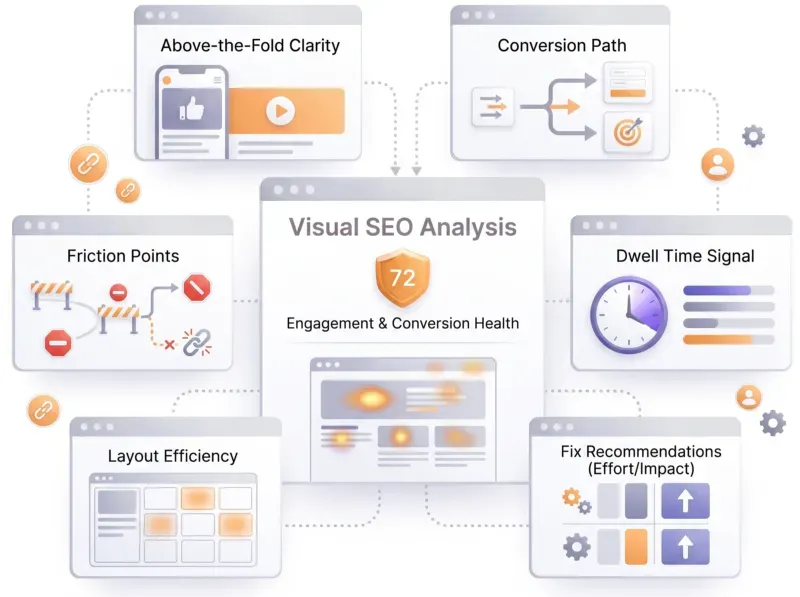
Visual SEO Analysis
Visual SEO Analysis

Find out if your page design converts the visitors you earn

We score six things that decide whether a visitor stays and acts, from the first screen to the path to action, and rank every fix by effort and impact.

How your page's design and UX affect conversions
Content Freshness
72%

The page shows a mix of recent and older product editions, with several books marked 2024, 2025, and 2026, which suggests active catalog maintenance. At the same time, some listings are much older, and the footer copyright is 2022, so the page feels current in parts but not uniformly fresh.

Positive Signals

  • 2026 edition listings
  • 2025 revised editions
  • 2024 updated titles

Staleness Signals

  • 2022 footer copyright
  • Older 2015-2019 editions
  • Mixed-age catalog entries
This test will check the freshness of the content on the webpage. It evaluates how recently the content was created or updated, and whether it remains relevant to current trends and user interests. Fresh content can attract more visitors and improve your website's ranking in search engine results.
Content Opportunities

The site has a strong product foundation but limited supporting content around discovery, comparison, and trust-building. The biggest opportunities are to add educational layers around the catalog, improve product-page depth, and surface more credibility signals that help buyers choose the right technical book.

Quick Wins

  • •Add a short one-paragraph summary to the top 10 best-selling book pages explaining what each book covers.
  • •Create a simple FAQ block on the homepage answering which books suit students, exam prep, and professionals.
  • •Add an About section snippet in the footer with publisher history and a link to the full company profile.
This test will identify potential content opportunities for the webpage. It analyzes the current content landscape, identifies gaps in coverage, and suggests topics or keywords that could be targeted to attract more visitors and improve search engine rankings.

Common SEO issues

Score:50
Failed:6
Warnings:2
Passed:11
Meta Title Test
100% of top 100 sites passed
This webpage is using a title tag.
Text: Charotar Publication – Publishers of Engineering Text-books
Length: 59 characters
The meta title is an HTML element that defines a page's title, displayed in search engine results, browser tabs, and bookmark lists. A concise, keyword-relevant title is a strong on-page ranking signal and a major driver of organic click-through rate. AI answer engines and LLM-driven search experiences also rely on the title to identify, summarize, and cite the page in generative results.
Meta Description Test
92% of top 100 sites passed
This webpage is not using a meta description tag! You should include this tag in order to provide a brief description of your page which can be used by search engines. Well-written and inviting meta descriptions may also help click-through rates to your site in search engine results.

Meta Description Test

How to pass this test?

The meta description is a short summary of the page that often appears beneath the title in search results and on social previews. Fixing this issue means adding a unique, accurate, action-oriented description to each page so search engines and link unfurlers have a trusted snippet to surface. AI answer engines and social platforms also use the meta description as a high-trust summary when generating previews, citations, and shareable snippets, which makes the same fix valuable for AEO visibility.

Example

<head>
  <meta name="description" content="Compare lightweight marathon running shoes from leading brands. Specs, weight, drop, and verified runner reviews to help you choose your next pair.">
</head>

Where to make the change

  • Raw HTML: add a single <meta name="description"> tag inside the <head>. The element has no closing tag in HTML5.
  • WordPress: install a dedicated SEO plugin and fill the Meta description field on each post and page. Most plugins show a live SERP preview as you type.
  • Shopify: open the page, product, or collection editor, expand Search engine listing preview, and edit the Description field.
  • Wix or Squarespace: open the page settings, locate the SEO panel, and update the Description field.
  • Headless or framework sites: emit the meta tag from the framework's metadata API so it is present in the initial HTML response and reachable without running JavaScript.

Common causes and how to resolve them

  • Tag is missing: add a <meta name="description"> inside the <head>. CMS themes sometimes omit it from custom templates.
  • Empty content attribute: the tag exists but its content value is blank. Populate it with a unique, page-specific summary.
  • Duplicate descriptions across pages: the same boilerplate is applied site-wide, giving Google no reason to differentiate listings. Write a unique description for every important page; even templated product or category pages benefit from variant-specific copy.
  • Unescaped quotes in the value: a stray double quote inside the content attribute breaks the tag silently. Use single quotes or the HTML entity &quot; inside the value.
  • Description set only by client-side JavaScript: render the meta tag in the initial HTML response so search engines and social link unfurlers can read it without executing scripts.

Best practices

  • Length: aim for roughly 150 to 160 characters on desktop and about 120 on mobile. Front-load the most important message so it survives truncation on smaller screens.
  • Include the primary keyword: Google bolds matched query terms in the snippet, which improves visibility even though the description itself is not a direct ranking factor.
  • Use active, action-oriented language: tell the user what they will learn, find, or do on the page. Active verbs consistently outperform passive summaries on click-through rate.
  • One unique description per page: reuse is a wasted opportunity. Distinct descriptions help users choose your listing and help search engines understand which page is the best match for a query.
  • Expect occasional rewrites: Google sometimes ignores the meta description and generates a snippet from on-page content if it judges that more relevant for a given query. Strong on-page copy keeps both versions effective.
The meta description is an HTML tag that provides a short summary of a page's content, often shown beneath the title in search results. While not a direct ranking factor, an accurate and inviting description significantly improves click-through rate from organic listings. AI answer engines and social platforms also use it as a trusted summary when generating previews, citations and shareable snippets.
Google Search Results Preview Test
Desktop version
https://www.cphbooks.in/Charotar Publication – Publishers of Engineering Text-books
Mobile version
https://www.cphbooks.in/Charotar Publication – Publishers of Engineering Text-books
A simulated preview of how the page may appear in Google search results, combining the title, URL, and meta description as Google typically renders them. Useful for spotting truncated text, weak phrasing, or missing elements before publishing, since the snippet directly influences whether searchers click through.
Social Media Meta Tags Test
89% of top 100 sites passed
This webpage is not using social media meta tags! While this type of meta tags don't affect what people see when they visit the webpage, they exist to provide information about it to search engines and social media platforms.

Social Media Meta Tags Test

How to pass this test?

Open Graph and Twitter Card meta tags tell social platforms, link unfurlers, and AI crawlers how to display the page when its URL is shared. Adding the right tags produces richer previews with the intended title, description, and image, which lifts click-through on social channels and gives answer engines a structured summary to work with when citing the page.

Example

<head>
  <meta property="og:title" content="Lightweight Marathon Running Shoes">
  <meta property="og:description" content="Compare specs, weight, and runner reviews.">
  <meta property="og:image" content="https://example.com/images/og-shoes.jpg">
  <meta property="og:url" content="https://example.com/shoes/marathon">
  <meta property="og:type" content="article">
  <meta name="twitter:card" content="summary_large_image">
</head>

Where to make the change

  • Raw HTML: add the meta tags directly to the <head>. Open Graph properties use property= while Twitter Card properties use name=.
  • WordPress: a dedicated SEO plugin will populate Open Graph and Twitter Card tags from the post's title, excerpt, and featured image. Override per-post when the auto-derived value is weak.
  • Shopify: most modern themes emit Open Graph tags automatically. If yours does not, edit theme.liquid to add the tags inside the <head> using product or page metadata.
  • Wix or Squarespace: open the page settings and use the social sharing image and description fields. Both platforms render the corresponding meta tags on save.
  • Headless or framework sites: emit Open Graph and Twitter Card tags from the framework's metadata API alongside the title and meta description.

Common causes and how to resolve them

  • No social meta tags at all: add at minimum og:title, og:description, og:image, and og:url. These are the four properties most platforms rely on.
  • Missing or relative og:image URL: social platforms require an absolute, publicly reachable image URL. Use a full https:// URL, not a relative path.
  • Image too small or wrong aspect ratio: aim for at least 1200 x 630 pixels so the preview renders crisply on Facebook, LinkedIn, and X without awkward cropping.
  • Stale preview cached by the platform: after fixing the tags, use the platform's debugger (Facebook Sharing Debugger, X Cards Validator, LinkedIn Post Inspector) to invalidate the cache and re-scrape the page.

Best practices

  • Use absolute URLs everywhere: og:url and og:image must be fully qualified. Relative paths break previews on most platforms.
  • Pick a dedicated social image: a single hero image at 1200 x 630 with the page's main visual covers Facebook, LinkedIn, X (with summary_large_image), and most other platforms in one shot.
  • Set a sensible og:type: use article for blog posts, website for landing pages, and product for e-commerce items. The type affects how some platforms render the preview.
  • Add Twitter-specific tags only when they differ: X falls back to Open Graph when Twitter Card tags are absent, so duplicate them only when you genuinely want a different title, image, or card type.
Open Graph and Twitter Card meta tags tell social platforms and link unfurlers how to display a page when its URL is shared. Well-formed tags produce richer previews with the intended title, description, and image, which improves click-through on social channels. They also serve as a structured signal that AI crawlers and answer engines can use when summarizing the page.
Most Common Keywords Test
There is likely no optimal keyword density (search engine algorithms have evolved beyond keyword density metrics as a significant ranking factor). It can be useful, however, to note which keywords appear most often on your page and if they reflect the intended topic of your page. More importantly, the keywords on your page should appear within natural sounding and grammatically correct copy.
784price
588engineering
392original
392current
204rangwala
A frequency analysis of the most repeated words and phrases in the page's visible content. Useful for getting a quick sense of which topics search engines are likely to associate with the page, and for spotting cases where the actual content drifts from the intended subject.
Keywords Usage Test
48% of top 100 sites passed
The most common keywords of this webpage are not distributed across the important HTML tags! Primary keywords should appear in title tag, meta description and heading tags to help Search Engines to properly identify the topic of this webpage.
Keyword
Title tag
Meta description
Headings
price
engineering
original
current
rangwala
Cross-checks whether the most frequently used keywords on the page also appear in the title and meta description. Alignment between body content and metadata helps search engines confirm the page's topic and reinforces relevance for those terms.
Keywords Cloud Test
advance
agrawal
airport
alagia
analysis
anurag
applied
aswani
banerjee
basic
bhatt
binding
bridge
building
bulsara
cart
civil
coastal
compare
concrete
construction
costing
current
dalal
deshmukh
design
dholawala
dock
download
drawing
edition
elements
engineering
environmental
essentials
estimating
experiments
fluid
foundation
fundamentals
gautam
geotechnical
harbour
hasmukh
irrigation
isbn
jignesh
junnarkar
kameswara
kandya
ketki
khandare
kumara
levelling
machine
machinery
management
materials
mechanical
mechanics
meghre
ocean
original
pages
pandya
paperback
patel
planning
price
programming
rahul
railway
rangwala
raval
reinforced
resource
rethaliya
sale
shah
shinde
singh
size
solids
srinivasan
structural
structures
surveying
swamy
technical
technology
thakkar
transportation
tunnel
urban
valuation
verma
water
weight
wishlist
works
A visual word cloud of the page's content, with more frequent terms shown in larger text. Provides a quick at-a-glance view of which words dominate the page, helping confirm that the visible content reflects the intended topic.
Competitor Domains Test
Competitor Domains

Understand your competitors' SEO and backlink profile

Get related competitors and their domain authority score in relation to your domain.

Identifies up to ten domains that compete for similar organic search results, ranked by overall domain authority based on the volume and quality of their backlink profiles. Useful for benchmarking the competitive landscape and prioritizing which sites to study for content and link-building strategy.
Heading Tags Test
62% of top 100 sites passed
This webpage does not contain H1 headings! H1 headings help indicate the important topics of your page to search engines. While less important than good meta-titles and descriptions, H1 headings may still help define the topic of your page to search engines.
H2 tags
Advance Surveying and Levelling By Rangwala
Airport Engineering By Rangwala
Applied Mechanics By S. B. Junnarkar, Dr. H. J. Shah
Basic Surveying and Levelling By Rangwala
Bridge Engineering By J. S. Alagia
Bridge Engineering By Rangwala
Building Construction By Rangwala
Building Planning and Drawing By Dr. N. Kumara Swamy, A. Kameswara Rao
Civil Engineering Drawing By Rangwala
CNC Fundamentals and Programming By P. M. Agrawal, Dr. V. J. Patel
Concrete Technology By Dr. R. P. Rethaliya
Construction of Structures and Management of Works By Rangwala
Construction Planning and Management By Ketki B Dalal Rangwala
Dock and Harbour Engineering By Hasmukh P. Oza, Gautam H. Oza
Elements of Civil Engineering By Anurag Kandya
Engineering Drawing By N. D. Bhatt
Engineering Materials By Rangwala
Essentials of Civil Engineering By Ketki Rangwala Dalal
Estimating, Costing and Valuation By Rangwala
Experiments in Mechanics of Solids By B. M. Raval
Fluid Mechanics and Machinery Laboratory Manual By Dr. N. Kumara Swamy
Fluid Power Transmission and Control By A. Alavudeen, K. H. Syed, N. Shanmugam
Geotechnical and Foundation Engineering By Dr. A. K. Verma, Rahul Verma
Harbour, Dock and Tunnel Engineering By R. Srinivasan
Highway Engineering By Rangwala
Irrigation Engineering By Dr. N. P. Singh, T. Banerjee, M. J. Dholawala
Machine Design By Dr. N. C. Pandya, Dr. C. S. Shah
Machine Drawing By N. D. Bhatt
Matrix Methods of Structural Analysis By Dr. A. S. Meghre, S. K. Deshmukh
Mechanics of Solids By Dr. H. J. Shah
Mechanics of Structures Vol. I By Dr. H. J. Shah, S. B. Junnarkar
Mechanics of Structures Vol. II By Dr. H. J. Shah, S. B. Junnarkar
Principles of Electrical Engineering By A. B. Shinde
Product Design and Value Engineering By Dr. M. A. Bulsara, Dr. H. R. Thakkar
Production Technology Vol. I By K. G. Aswani
Programming In C (Gujarati) By Jignesh Shah
Programming in C By Jignesh Shah
Railway Engineering By Rangwala
Railway, Bridge and Tunnel Engineering By Rangwala
Reinforced Concrete Vol. I – Part II By Dr. H. J. Shah
Reinforced Concrete Vol. I By Dr. H. J. Shah
Reinforced Concrete Vol. II By Dr. H. J. Shah
Soil Mechanics and Foundation Engineering By Hasmukh P. Oza, Gautam H. Oza
Structures In Practice By Gautam H. Oza
Thermal Engineering Vol. I By Dr. S. S. Khandare
Town Planning By Rangwala
Valuation of Real Properties By Rangwala
Water Supply and Sanitary Engineering By Rangwala
Worked Example of Applied Mechanics By Dr. H. J. Shah

Heading Tags Test

How to pass this test?

The H1 and H2 tags give search engines and assistive technology a clean outline of the page's topics. Fixing this issue means adding a single descriptive H1 and a logical hierarchy of H2 sub-sections so the page's structure is unambiguous to both users and machines. AI answer engines also use heading structure to segment content into discrete passages they can quote or summarize, so a clean hierarchy directly helps the page get picked up in generative results.

Example

<body>
  <h1>Lightweight Running Shoes for Marathons</h1>
  <h2>What to look for in a marathon shoe</h2>
  <h2>Top picks for 2026</h2>
  <h2>How we tested</h2>
</body>

Where to make the change

  • Raw HTML: add a single <h1> near the top of the page's main content, then use <h2> for major sections and <h3> for subsections under those.
  • WordPress: in the block editor, set the post title's heading level to H1 (themes usually do this automatically) and use the Heading block for in-body H2 and H3 sections.
  • Shopify: the product or page title field renders as an H1 in most themes. Use the rich-text editor to add H2 and H3 headings inside the body.
  • Wix or Squarespace: use the heading style picker in the block editor to assign H1, H2, and H3 levels rather than just changing font size.

Common causes and how to resolve them

  • No H1 on the page: add a single <h1> that names the page's primary topic. Many themes either skip the H1 or render the site logo as one.
  • Multiple H1s: while modern HTML allows multiple H1s, most SEO tools still flag them. Pick the most important one and demote the others to H2.
  • Headings used for visual styling only: bold or large text styled to look like a heading does not help search engines or screen readers. Use the actual heading tag and style it with CSS.
  • Hierarchy skips levels: jumping from H1 directly to H3 confuses assistive technology. Keep the order H1 then H2 then H3 without gaps.

Best practices

  • One H1 per page: reserve it for the page's main subject; treat it as the in-page equivalent of the title.
  • Make headings descriptive: each heading should make sense out of context. "How we tested" is better than "Methodology" alone if the page is a product review.
  • Include keywords naturally: H1 and H2 are mid-strength ranking signals. Use the focus keyword in the H1 and supporting terms in H2s when it reads naturally.
  • Outline the page from headings alone: if you can read just the H1 and H2s and understand what the page is about, the structure is doing its job.
Inspects the page for H1 and H2 heading tags and reports their structure. Headings give both users and search engines a clear outline of the page's topics, with the H1 acting as the primary subject and H2s framing major sections. A clean heading hierarchy also helps AI answer engines segment the content into discrete passages they can quote or summarize.
Robots.txt Test
99% of top 100 sites passed
This website is using a robots.txt file.
Verifies whether the site exposes a robots.txt file at the root domain. This file is the first resource most crawlers request, telling search engines and other bots which paths they may or may not access. It is also the standard mechanism for allowing or blocking modern AI crawlers used by training pipelines and answer engines.
Sitemap Test
83% of top 100 sites passed
This website has a sitemap file.
Looks for an XML sitemap on the site and reports whether one is published. Sitemaps give search engines an explicit, machine-readable list of the URLs you want crawled, along with metadata such as last-modified dates, which speeds up discovery of new and updated pages. They are especially useful for large sites or those with weak internal linking.
Image Alt Test
78% of top 100 sites passed
This webpage is using "img" tags with empty or missing "alt" attribute!

Image Alt Test

How to pass this test?

Alt attributes provide a text alternative for images, used by screen readers when a user cannot see the image and by search engines and multimodal AI models to understand what the image depicts. Fixing this issue means writing concise, descriptive alt text for every meaningful image on the page, and using empty alt for purely decorative images so assistive technology can skip them. The same alt text helps multimodal LLMs and image search tools surface and cite your visuals.

Example

<img src="/images/marathon-shoes.jpg"
     alt="Side view of a lightweight neon-green marathon running shoe">

<img src="/images/divider.svg" alt="">

Where to make the change

  • Raw HTML: add the alt attribute to every <img> tag. For decorative images, use alt="" so screen readers skip them.
  • WordPress: the media library has an Alt text field on every uploaded image. Fill it once and the value is reused everywhere the image is inserted.
  • Shopify: in the product or page editor, click an image and use the Edit alt text option. Theme code that renders product images should pull image.alt.
  • Wix or Squarespace: click the image in the editor and use the Alt text or Image description field in the side panel.
  • Headless or framework sites: require an alt prop on every image component and lint for missing values during build.

Common causes and how to resolve them

  • Attribute missing: add alt="" at minimum so the page validates. Replace with descriptive text on any image that conveys information.
  • Alt text is the filename: "IMG_4837.jpg" tells the user nothing. Replace with a description of what is in the image.
  • Alt text duplicates the visible caption: screen readers will read both, doubling the user's listening time. Differentiate the alt from the caption or empty the alt.
  • Decorative images get descriptive alt text: background patterns and dividers should use alt="", otherwise screen readers narrate noise.
  • Bulk imports left alt blank: a one-off audit of the media library or a CMS-side script can fill missing alt values from product names, captions, or asset descriptions.

Best practices

  • Describe the function, not just the appearance: for a chart, describe what the chart shows. For a button image, describe what the button does.
  • Keep it concise: aim for under 125 characters. Screen readers do not pause mid-sentence, so long alt text is exhausting to listen to.
  • Skip "image of" or "picture of": the screen reader already announces it as an image.
  • Include the focus keyword when natural: alt text is a minor on-page signal, but stuffing keywords in unnatural alt text harms both accessibility and ranking.
Inspects whether images on the page include descriptive alt attributes. Alt text provides accessibility for screen readers, a fallback when images fail to load, and a textual signal that helps search engines understand image content. It also improves how AI crawlers and image search tools interpret and surface the visuals.
Responsive Image Test
29% of top 100 sites passed
Not all images in this webpage are properly sized! This webpage is serving images that are larger than needed for the size of the user's viewport.

Responsive Image Test

How to pass this test?

This test fails when one or more images on the page are served at dimensions significantly larger than the size at which the browser actually renders them. Fixing this issue means resizing the source files (or serving responsive variants) so the bytes downloaded match the pixels actually displayed. The result is faster page loads, lower data usage, and better Core Web Vitals scores.

Example

<img
  src="/images/hero-800.jpg"
  srcset="/images/hero-400.jpg 400w,
          /images/hero-800.jpg 800w,
          /images/hero-1600.jpg 1600w"
  sizes="(max-width: 640px) 100vw, 800px"
  alt="Marathon runners at sunrise"
  width="800" height="450">

Where to make the change

  • Raw HTML: use srcset and sizes to let the browser pick the right variant for the user's viewport. Always include intrinsic width and height attributes.
  • WordPress: WordPress generates multiple image sizes automatically. Use the the_post_thumbnail() helper or the block editor's image block, both of which emit responsive srcset markup.
  • Shopify: use the image_url Liquid filter with size parameters (for example {{ image | image_url: width: 800 }}) and pair with image_tag to emit a responsive image.
  • Wix or Squarespace: both platforms generate responsive variants automatically; this issue is typically caused by uploading a deliberately oversized image.
  • Headless or framework sites: use the framework's image component (for example next/image or astro:assets), which generates responsive variants and lazy-loads off-screen images.

Common causes and how to resolve them

  • Original camera or stock-photo file uploaded as-is: a 6000-pixel-wide JPEG rendered in a 400-pixel column wastes most of the bytes. Resize the source or generate responsive variants.
  • No srcset: the browser has no choice but to use the single source. Add multiple variants so mobile users get smaller files.
  • Hero images sized for ultra-wide displays: if your largest layout is 1600 pixels, do not ship a 4000-pixel original.
  • Background images set in CSS without responsive sources: use the image-set() CSS function or media queries to swap in different image files at different breakpoints.

Best practices

  • Generate variants at common widths: 400, 800, 1200, and 1600 pixels covers most viewports cleanly.
  • Always set width and height: intrinsic dimensions let the browser reserve space and avoid layout shift, helping CLS.
  • Lazy-load off-screen images: add loading="lazy" to images below the fold so the browser only downloads them when needed.
  • Pair with modern formats: resizing alone is good; resizing and serving WebP or AVIF compounds the savings.
Compares the natural dimensions of each image to the size at which it is actually rendered in the user's viewport. Serving images significantly larger than needed wastes bandwidth, slows page load, and forces the browser to scale assets unnecessarily, all of which hurt performance and user experience.
Image Aspect Ratio Test
75% of top 100 sites passed
Not all image display dimensions match the natural aspect ratio! Fix aspect ratio issues to avoid distorted images on this website!

Image Aspect Ratio Test

How to pass this test?

This test fails when one or more images are rendered at an aspect ratio meaningfully different from the source file's native ratio, producing stretched or squashed visuals. Fixing this issue means either using width and height attributes that match the file's real dimensions or replacing the source with a correctly proportioned crop.

Example

<!-- Source file is 1600 x 900 (16:9). Set matching attributes: -->
<img src="/images/marathon-1600.jpg"
     alt="Marathon runners at sunrise"
     width="1600" height="900"
     style="max-width: 100%; height: auto;">

Where to make the change

  • Raw HTML and CSS: set the width and height attributes to the source file's native dimensions. Use CSS height: auto when scaling responsively so the browser preserves the ratio.
  • WordPress: when inserting an image via the block editor, choose the image's intended size rather than overriding dimensions in custom CSS.
  • Shopify, Wix, or Squarespace: use the platform's built-in image cropper so the displayed crop matches the source file you upload.
  • Headless or framework sites: components like next/image require both width and height, which prevents distortion when the layout scales.

Common causes and how to resolve them

  • Hard-coded width and height that do not match the file: recompute them from the source dimensions or remove them and rely on the file's intrinsic ratio.
  • Container has a fixed height that crops the image: use CSS object-fit: cover if cropping is intentional, or change the container so the image keeps its natural ratio.
  • Wrong source file uploaded: swap in a correctly proportioned crop rather than stretching the wrong file in CSS.

Best practices

  • Always set both width and height: the browser uses these to reserve space and avoid layout shift before the image loads, which helps CLS.
  • Use object-fit when cropping is intentional: cover fills the container without distortion; contain letterboxes to preserve the full image.
  • Standardize on a few aspect ratios: picking one or two ratios per template makes it easier to crop assets consistently and avoid one-off distortions.
Compares each image's natural aspect ratio against the ratio at which it is displayed on the page. Significant mismatches result in stretched or squashed visuals that look unprofessional and degrade the user experience.
Deprecated HTML Tags Test
94% of top 100 sites passed
This webpage does not use HTML deprecated tags.
Scans the markup for HTML elements that are no longer part of the modern HTML specification. Deprecated tags may still render today, but browsers can drop support at any time, leading to broken layouts and rendering inconsistencies. Replacing them with current standards keeps the page resilient and easier to maintain.
Google Analytics Test
72% of top 100 sites passed
This webpage is using Google Analytics.
Detects whether the page is instrumented with Google Analytics tracking code. Analytics is not an SEO ranking factor, but having reliable traffic and behavior data is essential for measuring the impact of SEO work and identifying opportunities for improvement.
Favicon Test
100% of top 100 sites passed
favicon
This website appears to have a favicon.
Verifies whether the site declares a favicon and that it loads correctly. Favicons appear in browser tabs, bookmarks, and increasingly in search engine result pages, where they reinforce brand recognition and make a listing easier to spot at a glance.
JS Error Test
83% of top 100 sites passed
There are no severe JavaScript errors on this webpage.
Inspects the page for JavaScript runtime errors that occur as it loads. Unhandled errors can break interactive features, leave content unrendered, and signal poor code quality, all of which hurt the user experience that search engines factor into rankings.
Console Errors Test
27% of top 100 sites passed
This webpage has some warnings caught by the Chrome DevTools Console!

Console Errors Test

How to pass this test?

Console warnings are non-fatal messages the browser emits about deprecated APIs, security best-practice violations, performance hints, or potential bugs. They do not break the page today, but most warnings indicate something that will eventually become a hard error. Fixing this issue means triaging each warning, resolving the actionable ones, and adding monitoring so new warnings get caught early.

Where to make the change

  • Open DevTools, Console tab: filter the panel to Warnings only. Each entry includes a link to the source location and often documentation explaining the recommended replacement.
  • Application code: update the call site to use the modern API. Most browser deprecations include a recommended replacement in the warning text.
  • Third-party tags: contact the vendor or upgrade to the current loader script. Outdated tags are the most common source of deprecation warnings.

Common causes and how to resolve them

  • Deprecated DOM or Web APIs: swap the deprecated method for the modern equivalent. The MDN documentation linked in the warning describes the replacement.
  • Performance hints (forced reflow, large layout shifts, long tasks): investigate with the Performance tab. These warnings often map directly to Core Web Vitals failures.
  • Insecure features (Permissions-Policy, deprecated headers): update server response headers to use the current syntax.
  • Cookie warnings (SameSite, Secure): set explicit SameSite and Secure attributes on every cookie, especially those used in cross-site contexts.

Best practices

  • Resolve warnings before they become errors: deprecation cycles usually run six to twelve months. Fix early to avoid emergency patches when the API is removed.
  • Keep the console clean on production: a noisy console hides genuine new issues among the chronic ones.
  • Pin third-party scripts to maintained versions: outdated vendor scripts are the dominant source of long-running warnings.
Reviews the browser console for warnings and errors emitted while the page loads. Console messages often expose underlying issues such as failed network requests, deprecated APIs, or security warnings that can quietly degrade the experience even when the page appears to work.
Charset Declaration Test
96% of top 100 sites passed
This webpage has a character encoding declaration.
Content-Type: text/html; charset=UTF-8
Checks whether the page declares a character encoding such as UTF-8. Without an explicit charset declaration, browsers must guess the encoding, which can lead to garbled symbols, broken accented characters, and inconsistent rendering across devices. UTF-8 is the modern standard recommended by Google.

Speed optimizations

Score:39
Failed:11
Warnings:2
Passed:7
HTML Page Size Test
23% of top 100 sites passed
The size of this webpage's HTML is 61.43 Kb, and is greater than the average size of 33 Kb! This can lead to slower loading times, lost visitors, and decreased revenue. Good steps to reduce HTML size include: using HTML compression, CSS layouts, external style sheets, and moving javascript to external files.

HTML Page Size Test

How to pass this test?

This test fails when the raw HTML document weighs significantly more than necessary, even before counting images, CSS, or JavaScript. Bloated HTML increases time to first byte, slows parsing, and stalls rendering on mobile networks and lower-powered devices. Fixing this issue means trimming inline data, removing legacy markup, and keeping the document focused on what the user needs.

Where to make the change

  • Application code or templates: identify which sections produce the most bytes (often a large inline JSON blob, an inline base64 image, or a giant comment block) and refactor them to load externally or be removed.
  • WordPress: check for plugins or page builders that emit large inline configurations. Disable unused plugins and prefer themes that ship clean markup.
  • Shopify: theme code may inline large product or section JSON. Move heavy data to a fetch-on-demand endpoint when possible.
  • Headless or framework sites: review the rendered output for serialized state (for example __NEXT_DATA__ in Next.js) and trim what is sent on first paint by streaming or lazy-loading non-critical chunks.

Common causes and how to resolve them

  • Inline base64 images or fonts: move them to external files so the browser can cache them across requests.
  • Excessive inline CSS or JavaScript: link to external stylesheets and scripts so they cache. Inline only the truly critical CSS for above-the-fold content.
  • Large server-side JSON payloads: ship only the data needed for first render. Fetch the rest on demand.
  • Repeating boilerplate or commented-out code: strip comments and dead code in the production build.
  • HTML compression disabled: Gzip or Brotli compression often shrinks the response by half or more. Confirm the server sends the appropriate Content-Encoding header.

Best practices

  • Aim for under 100 KB of HTML: most pages can comfortably stay under this. Anything beyond a few hundred KB usually indicates structural bloat worth refactoring.
  • Enable compression: Gzip is the safe minimum, Brotli is even better for HTML and other text formats.
  • Defer non-critical content: rendering only what is needed for the initial viewport keeps both bytes and parse time down.
  • Audit periodically: add HTML size to your performance budget so regressions get caught in CI.
Measures the size of the raw HTML document, excluding images and external CSS or JavaScript. Bloated HTML increases time to first byte and parsing time, slowing down rendering on mobile networks and lower-powered devices. Trimming inline styles, redundant markup, and oversized inline data keeps initial load fast.
DOM Size Test
56% of top 100 sites passed
The Document Object Model (DOM) of this webpage has 13,114 nodes which is greater than the recommended value of 1,500 nodes! A large DOM size negatively affects site performance and increases the page load time.

DOM Size Test

How to pass this test?

This test fails when the page builds a Document Object Model with too many nodes or excessive nesting depth. Large DOMs increase memory usage, lengthen style and layout calculations, and slow rendering, particularly on mobile devices. Fixing this issue means simplifying the markup so the browser has less work to do on every interaction.

Where to make the change

  • Application code or templates: identify the heaviest sections (long lists, repeating components, deep grid wrappers) and either paginate them, virtualize them, or flatten the markup.
  • WordPress: heavy page-builder themes often emit deeply nested wrapper divs. Consider switching templates or using a theme that emits cleaner markup.
  • Headless or framework sites: use a virtualized list component for long item lists so only visible rows are rendered into the DOM.

Common causes and how to resolve them

  • Long lists rendered in full: show a paginated subset or virtualize the list so only on-screen items exist in the DOM.
  • Excessive wrapper divs: a stack of layout wrappers ten deep can usually be flattened to two or three with modern CSS layouts (Grid, Flexbox).
  • Hidden modals and dropdowns kept in the DOM: render them on demand instead of always emitting them with display: none.
  • Third-party widget injecting many nodes: a chat widget or carousel may add hundreds of nodes per page. Lazy-load it after main content renders.

Best practices

  • Aim for under 1500 nodes total and a maximum depth of 32: Lighthouse uses these as warning thresholds and they correlate with smooth rendering on mid-tier mobile devices.
  • Render only what is visible: long lists, accordions, and modals belong outside the initial DOM until needed.
  • Prefer flat semantic markup: a single <article> with a few children is faster than a deeply nested <div> tree.
  • Audit with Lighthouse: the DOM size audit reports the worst-offending elements, which often points at a single template that needs rework.
Measures the size and depth of the page's Document Object Model, the tree of nodes the browser builds from the HTML. Very large DOMs increase memory usage, lengthen style and layout calculations, and slow down rendering, particularly on mobile devices. Keeping the DOM lean improves both load time and runtime responsiveness.
HTML Compression/GZIP Test
99% of top 100 sites passed
This webpage is successfully compressed using br compression on your code. The HTML code is compressed from 1230.99 Kb to 61.43 Kb (95% size savings). This helps ensure a faster loading webpage and improved user experience.
Verifies whether the server delivers the HTML using a compression algorithm such as Gzip or Brotli. Compressed responses dramatically reduce transfer size with negligible decompression cost, translating directly into faster page loads, especially on slower connections.
Site Loading Speed Test
71% of top 100 sites passed
The loading time of this webpage (measured from N. Virginia, US) is around 40.49 seconds and is greater than the average loading speed which is 5 seconds!
Related Keywords

Accurate historical loading speed monitor and reports

Get detailed and accurate loading speed reports for your websites and see how your pages are being loaded over time.

Measures the overall time required to load the page in the browser. Page speed is a confirmed Google ranking factor and a strong driver of bounce rate, with slower pages losing a meaningful share of users before they even see the content. Faster pages also tend to convert better, making this a key metric for both SEO and revenue.
JS Execution Time Test
53% of top 100 sites passed
The JavaScript code used by this webpage is executed in less than 2 seconds.
Reports the total time the browser spends parsing, compiling, and executing JavaScript while the page loads. Heavy JavaScript work blocks the main thread and is the primary cause of poor Interaction to Next Paint, the Core Web Vital that replaced First Input Delay in 2024 and that Google uses as part of its ranking algorithms. Reducing bundle size and deferring non-critical scripts directly improves perceived performance.
Page Objects Test
7% of top 100 sites passed
This webpage is using more than 20 http requests, which can slow down page loading and negatively impact user experience!
Content size by content type
Content type
Percent
Size
image
89.7 %
13.36 Mb
javascript
5.2 %
796.74 Kb
html
1.7 %
264.74 Kb
font
1.7 %
253.67 Kb
css
1.6 %
248.73 Kb
other
0.0 %
514 B
TOTAL
100%
14.89 Mb
Requests by content type
Content type
Percent
Requests
image
49.8 %
102
javascript
26.8 %
55
css
18.5 %
38
font
2.9 %
6
html
1.5 %
3
other
0.5 %
1
TOTAL
100%
205
Content size by domain
Domain
Percent
Size
cphbooks.in
96.4 %
14.35 Mb
pagead2.googlesyndication.com
1.8 %
281.13 Kb
googletagmanager.com
1.1 %
171.29 Kb
fonts.gstatic.com
0.6 %
89.62 Kb
googleads.g.doubleclick.net
0.0 %
4.42 Kb
fonts.googleapis.com
0.0 %
2.71 Kb
stats.g.doubleclick.net
0.0 %
514 B
TOTAL
100%
14.89 Mb
Requests by domain
Domain
Percent
Requests
cphbooks.in
94.1 %
193
pagead2.googlesyndication.com
1.5 %
3
fonts.gstatic.com
1.5 %
3
fonts.googleapis.com
1.0 %
2
googleads.g.doubleclick.net
1.0 %
2
googletagmanager.com
0.5 %
1
stats.g.doubleclick.net
0.5 %
1
TOTAL
100%
205
Verifies that every resource the page requests, including images, scripts, stylesheets, and fonts, can be successfully retrieved. Broken or unreachable assets can leave the page rendered incorrectly, trigger console errors, and damage both user experience and how search engines perceive page quality.
CDN Usage Test
95% of top 100 sites passed
This webpage is not serving all resources (images, javascript and css) from CDNs!

CDN Usage Test

How to pass this test?

A Content Delivery Network serves static assets from edge locations close to the user, reducing latency, improving cache hit rates, and offloading traffic from the origin server. Fixing this issue means routing your images, JavaScript, CSS, and fonts through a CDN so visitors anywhere in the world get fast, consistent delivery.

Where to make the change

  • Cloud platforms: Cloudflare, Fastly, AWS CloudFront, Bunny.net, and similar providers offer free or low-cost CDN tiers. Sign up, point your domain through the CDN, and enable caching for static asset paths.
  • WordPress: use a CDN integration plugin or sign up directly with Cloudflare and update the site's nameservers.
  • Shopify: Shopify serves storefront assets through its own CDN automatically; the failure usually points at custom assets uploaded outside the platform.
  • Headless or framework sites: deploying to Vercel, Netlify, or Cloudflare Pages puts the entire site behind a global CDN by default.

Common causes and how to resolve them

  • No CDN at all: add one. Even a free Cloudflare account in front of an existing host produces measurable speed gains.
  • CDN configured but bypassed for some assets: ensure all img, script, link, and font URLs use the CDN hostname rather than the origin.
  • Cache headers prevent caching: long-lived assets need cache-control headers like public, max-age=31536000, immutable. Without them, the CDN cannot cache effectively.
  • Origin-only third-party scripts: many vendors already serve their scripts via their own CDN. Use the URL the vendor provides rather than self-hosting.

Best practices

  • Use a versioned asset path: filenames like app.a3f9.css let you set far-future cache headers without ever serving stale files. Update the filename when content changes.
  • Enable Brotli at the edge: most CDNs can compress responses on the fly, including text formats.
  • Pre-warm caches for new launches: after a major release, request key URLs through every region (or use the CDN's purge-and-prefetch tools) so users do not hit cold caches.
Detects whether static assets such as images, JavaScript, and CSS are delivered through a Content Delivery Network. CDNs serve files from edge locations close to the user, reducing latency, improving cache hit rates, and offloading traffic from the origin server. The result is faster, more consistent page performance worldwide.
Modern Image Format Test
43% of top 100 sites passed
This webpage is not serving images in a modern format! Image formats like JPEG 2000, JPEG XR, and WebP often provide better compression than PNG or JPEG, which means faster downloads and less data consumption.

Modern Image Format Test

How to pass this test?

This test fails when images are served in legacy formats such as JPEG and PNG instead of modern alternatives like WebP or AVIF. Modern formats compress significantly better at equivalent visual quality, which means smaller transfers, faster page loads, and lower data usage for visitors on metered connections. Fixing this issue means generating modern variants and serving them to browsers that support them.

Example

<picture>
  <source srcset="/images/hero.avif" type="image/avif">
  <source srcset="/images/hero.webp" type="image/webp">
  <img src="/images/hero.jpg" alt="Marathon runners at sunrise" width="1600" height="900">
</picture>

Where to make the change

  • Raw HTML: use the <picture> element with multiple <source> entries so the browser picks the best supported format.
  • WordPress: WordPress 6.x and later supports WebP natively. Use a media optimization plugin to convert existing JPEGs and PNGs and serve modern formats automatically.
  • Shopify: Shopify's image CDN can serve WebP automatically; using the image_url filter with format parameter or the image_tag helper handles negotiation.
  • Wix or Squarespace: both platforms convert and serve WebP automatically when supported by the visitor's browser.
  • Headless or framework sites: components like next/image and astro:assets generate AVIF and WebP variants at build time and serve the best format per request.

Common causes and how to resolve them

  • Only legacy formats published: add a build step or image CDN that generates WebP and AVIF alongside the original.
  • Single-format <img> tag: wrap the image in <picture> with <source> entries for AVIF and WebP, falling back to the JPEG.
  • Image CDN not negotiating format: enable automatic format conversion or pass a format=auto query parameter (depends on provider).
  • SVG used where a raster image would be smaller (or vice versa): illustrations and icons should be SVG; photos should be raster in a modern format. Mixing them up wastes bytes.

Best practices

  • AVIF first, WebP fallback, JPEG last: AVIF compresses best, WebP is widely supported, JPEG remains the universal fallback.
  • Match quality to use case: hero images can use higher quality settings; thumbnails can drop quality without visible loss.
  • Use an image CDN: services like Cloudflare Images, Cloudinary, or Imgix handle resizing, format conversion, and caching in one step.
Identifies images served in legacy formats such as JPEG and PNG instead of modern alternatives like WebP or AVIF. Modern formats compress significantly better at equivalent visual quality, which means smaller transfers, faster page loads, and lower data usage for visitors on metered connections.
Image Metadata Test
72% of top 100 sites passed
This webpage is using images with large metadata (more than 16% of the image size)! Stripping out unnecessary metadata tags can improve not only the loading time but also the security and privacy of a webpage.

Image Metadata Test

How to pass this test?

This test fails when one or more images carry disproportionately large embedded metadata such as EXIF data, thumbnails, color profiles, geolocation, and camera information. This metadata is rarely useful on the web and adds bytes to every request without any rendering benefit. Fixing this issue means stripping the metadata as part of your image processing pipeline.

Where to make the change

  • Image build pipeline: use a tool such as ImageMagick (mogrify -strip image.jpg), jpegoptim --strip-all, or oxipng --strip all to remove metadata at build time.
  • WordPress: a media optimization plugin will strip metadata automatically on upload.
  • Shopify, Wix, Squarespace: the platforms strip most metadata server-side. Failures usually point to images served from external sources you control.
  • Image CDN: Cloudflare Images, Cloudinary, and Imgix strip non-essential metadata by default during transformation.

Common causes and how to resolve them

  • Original camera files uploaded as-is: camera files contain large EXIF blocks (lens, GPS, embedded JPEG previews). Strip during upload or build.
  • Color profile larger than the image: embed a small sRGB profile or strip the profile entirely if the image is meant for the web.
  • Stock photo metadata: stock images often carry copyright notices, IPTC blocks, and watermarks larger than the image data itself.
  • Geolocation in personal photos: beyond bytes, EXIF GPS can leak the photographer's location. Strip for privacy as well as performance.

Best practices

  • Strip metadata on upload: make it part of the asset pipeline so no human action is required.
  • Preserve only essentials: a small ICC color profile is occasionally worth keeping for accurate color rendering; everything else can usually go.
  • Verify with a quick check: tools like exiftool image.jpg show what is left after stripping, so you can confirm only what you want remains.
Flags images carrying disproportionately large embedded metadata such as EXIF data, thumbnails, color profiles, geolocation, and camera information. This metadata is rarely useful on the web and adds bytes to every request without any rendering benefit, making it an easy win for shrinking image payloads.
Image Caching Test
95% of top 100 sites passed
This website is using cache headers for images and the browsers will display these images from the cache.
Inspects whether image responses include caching headers that allow browsers to store them for repeat visits. With proper caching directives, returning visitors retrieve images from the local cache instead of refetching them, producing noticeably faster subsequent page loads.
JavaScript Caching Test
96% of top 100 sites passed
This webpage is using cache headers for all JavaScript resources.
Inspects whether external JavaScript files are served with caching headers that allow browsers to store and reuse them. Cached scripts skip the network on repeat visits, reducing load time and bandwidth for returning users without sacrificing the ability to push fresh code by versioning file URLs.
CSS Caching Test
98% of top 100 sites passed
This webpage is using cache headers for all CSS resources.
Inspects whether external CSS files are served with caching headers that allow browsers to store and reuse them. Cached stylesheets skip the network on repeat visits, reducing load time for returning users while still allowing updates through versioned filenames.
JavaScript Minification Test
98% of top 100 sites passed
This webpage is using JavaScript files that are not minified!

JavaScript Minification Test

How to pass this test?

This test fails when external JavaScript files are not minified. Minification strips whitespace, comments, and shortens identifiers, producing smaller files that are faster to download and parse. Fixing this issue is almost always a build configuration change rather than a code change.

Where to make the change

  • Build pipeline: enable minification in your bundler. Webpack, Rollup, Vite, esbuild, and Parcel all minify by default in production mode.
  • WordPress: a caching or optimization plugin can minify enqueued scripts on the fly.
  • Shopify: Shopify serves theme JavaScript minified automatically when delivered through the platform asset pipeline.
  • CDN-based minification: Cloudflare and others offer auto-minify for JavaScript responses if you cannot change the build.

Common causes and how to resolve them

  • Build running in development mode: ensure the production build (NODE_ENV=production or equivalent) runs in deploy.
  • Minifier disabled in config: a previous config tweak may have turned minification off. Re-enable it explicitly.
  • Inline scripts not minified: minifiers usually skip inline scripts. Move large inline scripts to external files so they are processed.

Best practices

  • Pair minification with compression: a minified file compresses even better with Brotli or Gzip.
  • Ship sourcemaps: upload sourcemaps to your error monitoring tool so production stack traces remain readable.
  • Use modern syntax targets: targeting modern browsers in your build produces smaller output than transpiling everything down to ES5.
Detects whether external JavaScript files are minified by stripping whitespace, comments, and shortening identifiers. Minified scripts are substantially smaller and faster to download and parse, which lowers page load time and improves Core Web Vitals scores.
CSS Minification Test
100% of top 100 sites passed
All CSS resources used by this webpage are minified.
Detects whether external CSS files are minified by removing whitespace, comments, and unused characters. Minification reduces stylesheet size with no functional change, leading to faster downloads and quicker first render.
Render Blocking Resources Test
15% of top 100 sites passed
This webpage is using render blocking resources! Eliminating render-blocking resources can help this webpage to load significantly faster and will improve the website experience for your visitors.

Render Blocking Resources Test

How to pass this test?

This test fails when JavaScript or CSS resources block the browser from rendering visible content. Each render-blocking file delays the first paint, and on slower networks the cumulative impact can be severe. Fixing this issue means inlining the truly critical CSS, deferring or asynchronously loading non-essential scripts, and removing unused code.

Example

<head>
  <!-- Inline only above-the-fold critical CSS -->
  <style>/* critical styles here */</style>

  <!-- Load full stylesheet asynchronously -->
  <link rel="preload" href="/styles/main.css" as="style"
        onload="this.onload=null;this.rel='stylesheet'">

  <!-- Defer non-critical scripts -->
  <script src="/scripts/app.js" defer></script>
</head>

Where to make the change

  • Application code or templates: identify the CSS and JavaScript needed for the initial render and load only those synchronously. Defer the rest.
  • Build pipeline: use a critical CSS extractor (such as critical or penthouse) to generate the above-the-fold styles automatically.
  • WordPress: performance plugins offer "delay JS execution" and "load CSS asynchronously" options that handle most of this without code changes.
  • Headless or framework sites: use the framework's preload and code-splitting hints to control what blocks rendering.

Common causes and how to resolve them

  • Single large stylesheet blocking render: inline critical CSS for the first viewport, load the full stylesheet asynchronously.
  • Synchronous third-party scripts in the head: add defer or async, or move them to the end of the body.
  • Web fonts blocking text rendering: add font-display: swap in @font-face rules so the fallback font shows immediately.
  • Render-blocking @import in CSS: replace with separate <link rel="stylesheet"> tags so the browser can fetch them in parallel.

Best practices

  • Use defer for scripts that need the DOM: they execute after parsing but before DOMContentLoaded.
  • Use async for fully independent scripts: they execute as soon as they download, in any order.
  • Preload the critical request chain: tell the browser early about fonts and key assets with <link rel="preload">.
  • Audit with Lighthouse: the Render-blocking resources audit lists every offending file with the estimated time saved by deferring it.
Identifies JavaScript and CSS resources that the browser must download and process before it can render visible content. Each render-blocking file delays the first paint, and on slower networks the cumulative impact can be severe. Inlining critical styles, deferring non-essential scripts, and removing unused code all help unblock the rendering path.
URL Redirects Test
97% of top 100 sites passed
This URL performed 1 redirects! While redirects are typically not advisable (as they can affect search engine indexing issues and adversely affect site loading time), one redirect may be acceptable, particularly if the URL is redirecting from a non-www version to its www version, or vice-versa.
Counts the number of HTTP redirects required for the URL to resolve to its final destination. Each hop adds latency and can dilute link equity, while long redirect chains sometimes confuse crawlers and indexing pipelines. Keeping redirects short and direct is a Google recommendation for both performance and SEO.
Time To First Byte Test
99% of top 100 sites passed
The Time To First Byte value of this webpage is 6.664 seconds. To provide a good user experience, Google recommends that sites should strive to have a TTFB of 0.8 seconds or less.
6.664 s
0.8 s
1.8 s

Time To First Byte Test

How to pass this test?

Time to First Byte (TTFB) measures the delay between the browser requesting the page and the first byte of the response arriving. TTFB reflects backend, network, and CDN performance and effectively sets the floor for every other loading metric, since rendering cannot begin until bytes start flowing. Fixing this issue usually means improving server response time, adding edge caching, or reducing redirect chains.

Where to make the change

  • Server and hosting: upgrade to a faster host plan, move to a region closer to your users, and enable HTTP/2 or HTTP/3.
  • CDN: putting the site behind a CDN dramatically reduces TTFB for users far from the origin server. Cache HTML responses at the edge whenever possible.
  • Application code: profile slow endpoints, cache expensive database queries and external API calls, and use streaming or partial responses.

Common causes and how to resolve them

  • Slow server processing: profile the slowest controllers or routes. Database queries, N+1 loops, and synchronous third-party API calls are typical culprits.
  • No edge caching: caching HTML at the CDN reduces TTFB to a single edge round trip. Use rules to bypass cache for logged-in users.
  • Long redirect chains: each hop adds latency before bytes flow. Collapse chains so the URL the user requests resolves to its final destination in one step.
  • Origin in a distant region: a US-only origin makes Asian users wait. Add edge regions or move the origin closer to the audience.
  • HTTP/1.1 or no keep-alive: upgrading to HTTP/2 or HTTP/3 reduces connection setup overhead.

Best practices

  • Target sub-800 millisecond TTFB at the 75th percentile: Google's recommended threshold for a "good" experience.
  • Cache aggressively: the cheapest server work is the work you never do. Static and semi-static pages should be served from cache.
  • Use HTTP/3 where supported: it eliminates head-of-line blocking and reduces handshake latency, especially on mobile networks.
  • Stream the response when possible: sending the head before the rest of the body lets the browser start fetching subresources earlier.
Measures Time to First Byte, the delay between the browser requesting the page and the first byte of the response arriving. TTFB reflects backend, network, and CDN performance and effectively sets the floor for every other loading metric, since rendering cannot begin until bytes start flowing. Sustained high TTFB usually points to slow server processing, missing edge caching, or inefficient redirects.
First Contentful Paint Test
90% of top 100 sites passed
The First Contentful Paint value of this webpage is 12.680 seconds. To provide a good user experience, Google recommends that sites should strive to have a First Contentful Paint value of 1.8 seconds or less.
12.68 s
1.8 s
3 s

First Contentful Paint Test

How to pass this test?

First Contentful Paint (FCP) measures the time from when the page starts loading to when any part of its content is rendered on the screen. FCP is the user's first visual confirmation that the page is loading, and faster values are strongly correlated with lower bounce rates and better Core Web Vitals scores. Fixing this issue means reducing time to first byte, eliminating render-blocking resources, and serving above-the-fold content without delay.

Where to make the change

  • Server and CDN: reduce TTFB so the browser receives bytes sooner. Edge caching for HTML produces dramatic FCP wins.
  • Application code or templates: inline the critical CSS for above-the-fold content and defer everything not needed for the first paint.
  • Build pipeline: ensure JavaScript bundles are split so the initial load only includes what is needed for first render.

Common causes and how to resolve them

  • Slow TTFB: address the underlying server, redirect, or hosting issue (see Time to First Byte fix).
  • Render-blocking CSS: inline the critical CSS for the first viewport, load the full stylesheet asynchronously.
  • Render-blocking JavaScript in the head: add defer or move scripts to the end of the body.
  • Web fonts delaying text rendering: add font-display: swap so a fallback font is shown immediately while the custom font loads.
  • Heavy hero image without prioritization: add fetchpriority="high" to the hero image and <link rel="preload"> for it in the head.

Best practices

  • Target sub-1.8 second FCP at the 75th percentile: Google's recommended threshold for a "good" experience.
  • Inline critical CSS: the styles needed for the first viewport should not require an extra network round trip.
  • Preload key resources: hero image, key fonts, and critical scripts benefit from explicit preload hints.
  • Defer non-critical work: analytics, chat widgets, and below-the-fold content can wait until after first paint.
Measures First Contentful Paint, the moment when the browser renders the first piece of visible content from the DOM, such as text, an image, or an SVG. FCP is the first signal to the user that the page is actually loading, and faster values are strongly correlated with lower bounce rates and better Core Web Vitals scores.
Largest Contentful Paint Test
77% of top 100 sites passed
The Largest Contentful Paint duration of this webpage is 12.68 seconds. To provide a good user experience, Google recommends that sites should strive to have Largest Contentful Paint of 2.5 seconds or less.
12.68 s
2.5 s
4 s
Largest Contentful Paint element within the viewport:
<img fetchpriority="high" decoding="async" width="1232" height="194" src="https://www.cphbooks.in/wp-content/uploads/2019/02..." class="vc_single_image-img attachment-full" alt="" title="CPHPL-75-year-mix-Logo" srcset="https://www.cphbooks.in/wp-content/uploads/2019/02..." sizes="(max-width: 1232px) 100vw, 1232px">

Largest Contentful Paint Test

How to pass this test?

Largest Contentful Paint (LCP) measures when the largest visible element in the viewport, such as a hero image or main heading, finishes rendering. LCP is one of Google's Core Web Vitals and a direct ranking factor, used as a proxy for when the user perceives the page as effectively loaded. Fixing this issue means identifying the LCP element and ensuring it loads as early as possible.

Where to make the change

  • Identify the LCP element: open Chrome DevTools, run a Performance trace, and find the LCP marker. The element it points at is the one to optimize.
  • Application code or templates: preload the LCP image, give it fetchpriority="high", and ensure it is in the initial HTML rather than injected by JavaScript.
  • Server and CDN: reduce TTFB and ensure the LCP image is served from a fast, geographically close origin.

Common causes and how to resolve them

  • Hero image loaded lazily: remove loading="lazy" from the LCP image; it should load eagerly.
  • LCP image not preloaded: add <link rel="preload" as="image" href="/hero.jpg" fetchpriority="high"> in the head so the browser fetches it before parsing the rest of the document.
  • LCP image too large or in legacy format: resize to displayed dimensions and serve as WebP or AVIF.
  • Slow TTFB or render-blocking resources: address the underlying TTFB and render-blocking issues; LCP cannot be fast if the page itself is slow to start.
  • Client-side rendered hero content: server-render or pre-render the LCP element so it appears in the initial HTML.
  • Web fonts delaying LCP text: use font-display: swap so the LCP heading renders immediately in a fallback font.

Best practices

  • Target sub-2.5 second LCP at the 75th percentile: the official Core Web Vitals threshold for a "good" experience.
  • Preload the LCP image: the single highest-impact LCP optimization on most sites.
  • Use fetchpriority="high": tells the browser to prioritize the resource ahead of others.
  • Ship modern image formats: AVIF and WebP cut hero image bytes substantially, which directly lowers LCP.
Measures Largest Contentful Paint, the time at which the largest visible element in the viewport, such as a hero image or main heading, finishes rendering. LCP is one of Google's Core Web Vitals and a direct ranking factor, used as a proxy for when the user perceives the page as effectively loaded.
Cumulative Layout Shift Test
91% of top 100 sites passed
The CLS score of this webpage is 0.0004. To provide a good user experience, Google recommends that sites should strive to have a CLS score of 0.1 or less.
0.0004
0.1
0.25
DOM element which contributes the most to CLS score:
Html: <div class="mmm_fullwidth_container" style="width:1920px;left: -15px;right:auto;">
Score: 0.0004
Measures Cumulative Layout Shift, the total amount that visible elements move around unexpectedly while the page loads. Layout shifts cause users to misclick and feel the page is unstable, and CLS is one of Google's Core Web Vitals and a direct ranking factor. Common causes include images without explicit dimensions, late-loading fonts, and aggressively injected overlays such as cookie consent banners.

Server and security

Score:84
Failed:2
Warnings:0
Passed:5
URL Canonicalization Test
93% of top 100 sites passed
https://www.cphbooks.in/ and https://cphbooks.in/ resolve to the same URL.
Detects whether different URL variants of the site, such as the apex domain and the www subdomain or HTTP and HTTPS, all resolve consistently to a single canonical version. When the same content is reachable at multiple URLs without proper redirects, search engines may split ranking signals across the variants and become unsure which one to index.
SSL Checker and HTTPS Test
100% of top 100 sites passed
This website is successfully using HTTPS, a secure communication protocol over the Internet.
The certificate is not used before the activation date.
The certificate has not expired.
The hostname "www.cphbooks.in" is correctly listed in the certificate.
The certificate should be trusted by all major web browsers.
The certificate was not revoked.
The certificate was signed with a secure hash.
Certificate Chain:
Server certificate
Common Name
cphbooks.in
Subject Alternative Names
cphbooks.in, www.cphbooks.in
Not Valid Before
Thu, May 14, 2026 at 3:25:50 AM UTC
Not Valid After
Wed, August 12, 2026 at 3:25:49 AM UTC
Signature Algorithm
sha256WithRsaEncryption
Issuer
R12
Intermediate certificate
Common Name
R12
Organization
Let's Encrypt
Location
US
Not Valid Before
Wed, March 13, 2024 at 12:00:00 AM UTC
Not Valid After
Fri, March 12, 2027 at 11:59:59 PM UTC
Signature Algorithm
sha256WithRsaEncryption
Issuer
ISRG Root X1
Root certificate
Common Name
ISRG Root X1
Organization
Internet Security Research Group
Location
US
Not Valid Before
Thu, June 4, 2015 at 11:04:38 AM UTC
Not Valid After
Mon, June 4, 2035 at 11:04:38 AM UTC
Signature Algorithm
sha256WithRsaEncryption
Issuer
ISRG Root X1
Verifies whether the site is served over HTTPS with a valid TLS certificate. HTTPS encrypts the connection between visitor and server, protecting credentials and other sensitive data in transit, and Google has used it as a positive ranking signal since 2014. Modern browsers also flag non-HTTPS pages as Not Secure, which damages user trust.
Mixed Content Test (HTTP over HTTPS)
100% of top 100 sites passed
This webpage does not use mixed content - both the initial HTML and all other resources are loaded over HTTPS.
Detects whether a page served over HTTPS is loading any sub-resources such as images, scripts, or stylesheets over insecure HTTP. Mixed content weakens the security guarantees of HTTPS, and modern browsers either block the resources outright or warn the user, often breaking the page in the process.
HTTP2 Test
99% of top 100 sites passed
This webpage is using the HTTP/2 protocol.
Verifies whether the page and its resources are delivered over HTTP/2 or newer, rather than the legacy HTTP/1.1 protocol. HTTP/2 introduces multiplexing, header compression, and prioritization, which together reduce latency and allow the browser to load many resources from the same origin far more efficiently.
HSTS Test
84% of top 100 sites passed
This webpage is not using the Strict-Transport-Security header! This is a security header that was created as a way to force the browser to use secure connections when a site is running over HTTPS.

HSTS Test

How to pass this test?

The Strict-Transport-Security (HSTS) response header tells browsers to access the site only over HTTPS, automatically upgrading future requests and refusing to fall back to HTTP. Fixing this issue means configuring the server to send the header on every HTTPS response.

Example

Strict-Transport-Security: max-age=31536000; includeSubDomains; preload

Where to make the change

  • Server configuration: add the header in Nginx (add_header Strict-Transport-Security "max-age=31536000; includeSubDomains" always;), Apache (Header always set Strict-Transport-Security ...), or your application's response middleware.
  • CDN: Cloudflare, Fastly, and CloudFront let you set HSTS at the edge so it applies regardless of origin configuration.
  • Cloud platforms: Netlify and Vercel allow HSTS via headers files (_headers on Netlify, vercel.json on Vercel).

Common causes and how to resolve them

  • Header not sent: add it in the server or CDN config. Confirm in DevTools, Network tab.
  • Header sent only on HTTP responses: HSTS is only honored over HTTPS, so the header must accompany the HTTPS response.
  • Short max-age: a max-age below a few months provides little protection. Bump to a year (31536000) once you are confident HTTPS is stable.
  • includeSubDomains breaking subdomains that lack HTTPS: only add this directive after every subdomain serves HTTPS. Otherwise users will lose access to the HTTP-only ones.

Best practices

  • Start with a short max-age, then ramp up: a one-week max-age lets you back out quickly if something breaks. Increase to a year once stable.
  • Add preload after testing: submit your domain to hstspreload.org so browsers ship with HSTS for your site baked in. Note that removing a preloaded site is slow.
  • Pair with HTTP-to-HTTPS redirects: HSTS only kicks in after a successful HTTPS visit. Until then, redirects do the work.
Checks whether the server sends a Strict-Transport-Security header instructing browsers to only access the site over HTTPS. HSTS protects users from protocol downgrade attacks and accidental exposure to insecure connections, and is a baseline requirement for any site handling sensitive data.
Plaintext Emails Test
97% of top 100 sites passed
This webpage does not include email addresses in plaintext.
Scans the page for email addresses written in plain text. Spambots harvest such addresses to add them to bulk mailing lists, so obfuscating contact emails or replacing them with contact forms helps reduce inbox spam without hiding the address from legitimate visitors.

Mobile usability

Score:100
Failed:0
Warnings:0
Passed:3
Meta Viewport Test
92% of top 100 sites passed
This webpage is using a viewport meta tag.
<meta name="viewport" content="width=device-width, initial-scale=1" />

Checks whether the page declares a viewport meta tag that controls how the layout scales on mobile devices. Without it, mobile browsers render the page at a default desktop width and shrink it to fit, producing unreadable text and unusable touch targets. A correct viewport declaration is the foundation of responsive design.
Media Query Responsive Test
98% of top 100 sites passed
This webpage is using CSS media queries, which is the base for responsive design functionalities.
Detects whether the page's stylesheets use CSS media queries to adapt the layout to different screen sizes. Media queries are the primary mechanism for responsive design, allowing typography, spacing, and component arrangement to adjust gracefully from phones to large desktops. Because Google now indexes the web mobile-first, the responsive mobile layout is effectively the version search engines crawl, evaluate, and rank.
Mobile Snapshot Test
Mobile view
A rendered screenshot of how the page appears on a mobile device. Useful for visually confirming that responsive layouts work as intended and for spotting issues such as overflowing content, illegible text, or broken images that automated checks alone may miss.

Advanced SEO

Score:74
Failed:2
Warnings:1
Passed:6
Structured Data Test
66% of top 100 sites passed
This webpage doesn't take the advantages of HTML Microdata or JSON-LD specifications in order to use structured data! View Google's guide for getting started with structured data.

Structured Data Test

How to pass this test?

Structured data is a standardized way to label the entities and relationships on a page so search engines and AI answer engines can understand them. Adding the right schema helps unlock rich result features in SERPs (star ratings, FAQs, product cards, recipes, events) and gives AI answer engines precise facts to extract when generating responses. Fixing this issue means picking the schema types that match your content and embedding them as JSON-LD inside the page <head>. See the Google Search Central structured data guide for the full type catalog.

Example

<script type="application/ld+json">
{
  "@context": "https://schema.org",
  "@type": "Article",
  "headline": "How to choose marathon running shoes",
  "author": { "@type": "Person", "name": "Jane Doe" },
  "datePublished": "2026-04-15",
  "image": "https://example.com/images/hero.jpg"
}
</script>

Where to make the change

  • Raw HTML: embed a JSON-LD block inside the <head>. JSON-LD is Google's preferred format because it does not interleave with visible content.
  • WordPress: a dedicated SEO plugin generates JSON-LD for articles, products, breadcrumbs, and FAQ blocks automatically. Customize the templates for non-standard content.
  • Shopify: Shopify themes emit Product schema by default. Extend with custom types via theme code edits.
  • Wix or Squarespace: built-in blocks for FAQ, recipe, and event content emit schema automatically.
  • Headless or framework sites: generate JSON-LD from your content data in the layout component so every page ships consistent schema.

Common causes and how to resolve them

  • No structured data at all: add at minimum the @type that matches the page (Article for blog posts, Product for product pages, Organization for the homepage).
  • Wrong schema type for the content: using Product schema on an article page misleads search engines. Pick the type that matches what the page actually is.
  • Required properties missing: each schema type has required fields. Validate with the Rich Results Test to surface missing properties.
  • Markup does not match visible content: Google penalizes structured data that asserts facts the page does not show. Reflect what is actually on the page.
  • Multiple conflicting blocks: a theme and an SEO plugin both emit schema for the same entity. Pick one source of truth.

Best practices

  • Validate before shipping: Google's Rich Results Test and Schema Markup Validator catch syntax errors and missing required fields.
  • Use JSON-LD: easier to maintain than Microdata or RDFa and Google's preferred format.
  • Cover the obvious wins: Article, Product, BreadcrumbList, Organization, and FAQPage are the highest-impact types for most sites.
  • Keep schema accurate: wrong or exaggerated schema can lead to Google removing rich result eligibility for the entire site.
Inspects the page for structured data markup such as JSON-LD or Microdata that follows schema.org vocabularies. Structured data helps search engines understand entities and relationships on the page, often unlocking rich result features in SERPs such as star ratings, FAQs, recipes, and product cards. It is also a primary signal AI answer engines use to extract precise facts when generating responses.
Custom 404 Error Page Test
80% of top 100 sites passed
This website is using a custom 404 error page. We recommend to have a custom 404 error page in order to improve the website's user experience by letting users know that only a specific page is missing/broken (and not the entire site), providing them helpful links, the opportunity to report bugs, and potentially track the source of broken links.
Detects whether the site serves a branded, helpful page when a requested URL is not found, instead of the browser's generic error screen. A custom 404 keeps users on the site by offering navigation, search, or suggested links, which reduces frustration and protects engagement metrics that influence both UX perception and indirect SEO outcomes.
Noindex Tag Test
99% of top 100 sites passed
This webpage does not use the noindex meta tag. This means that it can be indexed by search engines.
Detects whether the page is being excluded from search engine indexes via a noindex directive in the robots meta tag or X-Robots-Tag HTTP header. A noindex on the wrong page is one of the most common ways important content silently disappears from search results, so verifying its absence on pages meant to rank is critical.
Canonical Tag Test
93% of top 100 sites passed
This webpage is using the canonical link tag. This tag specifies that the URL: https://www.cphbooks.in/ is preferred to be used in search results. Please ensure that this specification is correct, as canonical tags are often hard-coded and may not always reflect the latest changes in a site's URL structure.
<link href="https://www.cphbooks.in/" rel="canonical"/>
Detects whether the page declares a canonical link tag indicating its preferred URL. Canonical tags consolidate ranking signals across duplicate or near-duplicate URLs onto a single authoritative version, which prevents search engines from splitting authority across variants caused by query parameters, session IDs, or alternate paths. They also help AI crawlers identify the source of truth when citing the page.
Nofollow Tag Test
This webpage is using the nofollow meta tag! We recommend to use this tag carefully since search engines will not crawl all links from this webpage.

Nofollow Tag Test

How to pass this test?

This test reports on whether the page applies a nofollow directive that tells search engines not to follow outbound links. The nofollow attribute (and the related sponsored and ugc values) controls how link equity flows from your page. Fixing this issue means using the right rel value on each external link based on its purpose so signals are passed only where you intend.

Where to make the change

  • Raw HTML: add rel="nofollow", rel="sponsored", or rel="ugc" to specific outbound links rather than blanket-applying them site-wide.
  • WordPress: the block editor offers a "mark as nofollow" option per link, and SEO plugins can auto-tag external links by domain.
  • Shopify, Wix, Squarespace: editor-generated links allow rel attribute toggles; manual HTML embeds need them set explicitly.
  • Headless or framework sites: wrap external links in a component that decides the rel based on the link's classification.

Common causes and how to resolve them

  • Site-wide nofollow on every external link: overly aggressive. Reserve nofollow for sponsored, untrusted, or user-generated content.
  • Sponsored content not labeled: use rel="sponsored" on paid placements and affiliate links to comply with Google's link spam policy.
  • User-generated content unmarked: comments, forum posts, and review user submissions should use rel="ugc".
  • Trusted editorial links nofollowed: these should pass equity. Remove the nofollow.

Best practices

  • Use the most specific value: sponsored for paid links, ugc for user content, nofollow for everything else you want to disclaim. They can be combined: rel="sponsored noopener".
  • Do not nofollow internal links: "PageRank sculpting" with internal nofollow no longer works and just wastes crawl signal.
  • Audit periodically: as content ages, sponsored relationships change. Review affiliate and partner links once a year.
Detects whether the page applies a nofollow directive, either through a robots meta tag, an X-Robots-Tag header, or per-link rel attributes, that tells search engines not to follow outbound links. Google recommends nofollow for sponsored links and for user-generated content where the linked sites are not vetted, so its presence or absence has real consequences for how link equity flows.
Disallow Directive Test
Your robots.txt file includes a disallow command which instructs search engines to avoid certain parts of your website! You are advised to confirm if access to these resources or pages are intended to be blocked (e.g., if they contain internal-only content or sensitive information).
Surfaces the disallow rules declared in the site's robots.txt file. Disallow directives tell search engine crawlers not to access specific files, paths, or directories, which is useful for keeping admin sections and duplicate content out of indexes but dangerous when applied too broadly, since over-blocking can hide important pages from search.
Meta Refresh Test
98% of top 100 sites passed
This webpage is not using a meta refresh tag.
Detects whether the page uses a meta refresh tag to automatically reload or redirect after a delay. Meta refresh is largely obsolete, hurts accessibility by jumping focus and disorienting screen reader users, and is a weaker signal to search engines than a proper server-side 301 redirect. Its presence usually indicates outdated implementation worth updating.
SPF Records Test
94% of top 100 sites passed
This DNS server is using an SPF record.
v=spf1 include:_spf.mail.hostinger.com ~all
Checks the domain's DNS for a Sender Policy Framework record. SPF lets receiving mail servers verify that messages claiming to come from the domain were actually sent by an authorized mail server, which significantly reduces the chance of legitimate email being marked as spam and protects the domain's sender reputation.
Ads.txt Validation Test
67% of top 100 sites passed
This website doesn't use an ads.txt file! Ads.txt is a text file that contains a list of Authorized Digital Sellers. The purpose of ads.txt files is to give advertisers and advertising networks the ability to verify who is allowed to sell advertising on your website.
Validates the format of the site's ads.txt file, which publishers use to declare which advertising vendors are authorized to sell their inventory programmatically. A correctly formatted ads.txt protects against domain spoofing in the ad supply chain and is required for inclusion in many premium advertising marketplaces.

Dominate search today on Google and AI Engines.

Join 85,000+ SaaS Marketers, Growth Agencies, Content-Led Companies and E-commerce Brands.

See Pricing
Dashboard preview showing SEO site checkup metrics, page group insights, and issue prioritization